The Settings page is where you can manage everything related to your account, brand, and preferences.
Here, you’ll find the following sections:
My Brands
Platforms & Schedule
Account & Billing
Notifications
From the left-hand menu, select Settings.
The page will automatically open on the My Brands section.
To switch between settings, use the tabs at the top of the page.
Access the Platforms & schedule option.
Understanding the Platforms & schedule settings
The Platforms & schedule page in Socialbud is designed to simplify and enhance your social media management experience. This page offers three main settings categories that help you align your scheduling, platforms, and general preferences.
These foundational settings let you define how your posting and scheduling are structured:
Setting your time zone ensures your scheduled posts go live at the most effective times for your audience, regardless of their location.
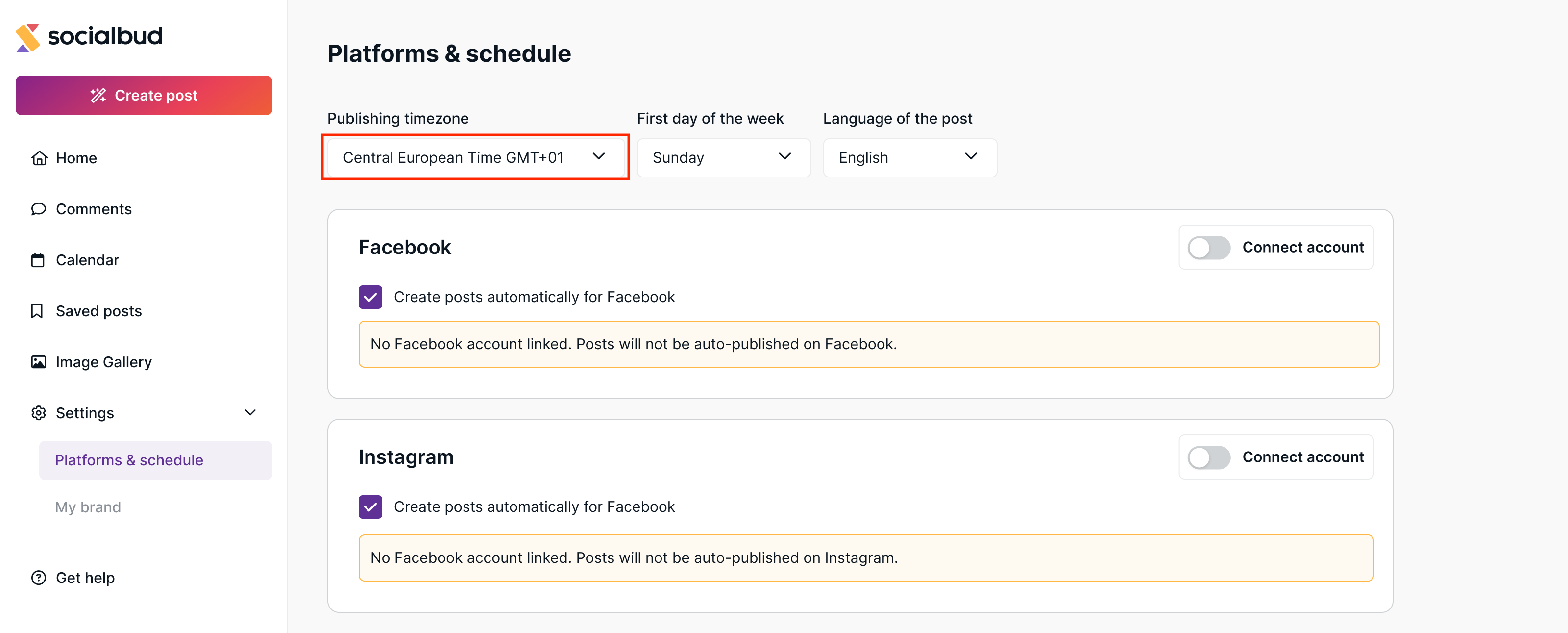
How to set your time zone:
Navigate to the Platforms & schedule page.
Select your time zone from the dropdown menu.
Save your changes.

Customize your calendar’s starting day to align with your workflow or regional preferences.
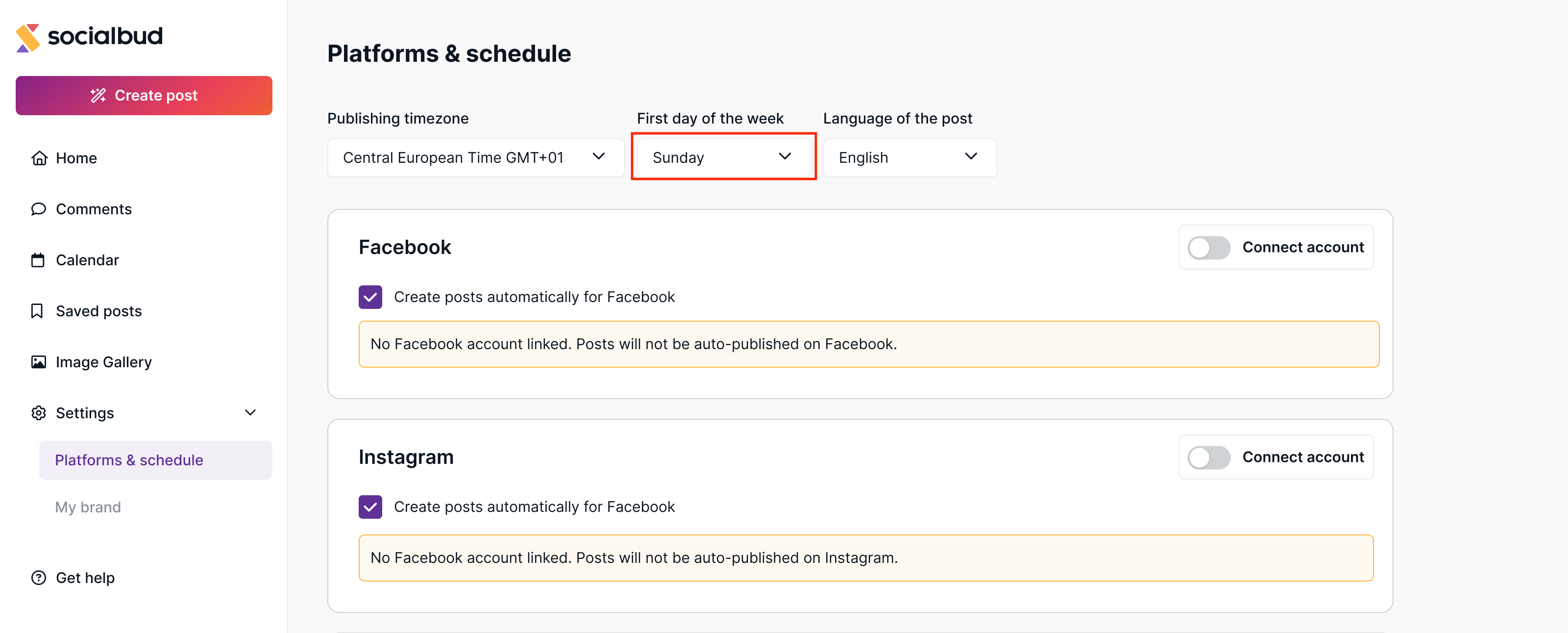
Options: Sunday, Monday, or any other preferred day.
How to customize:
Go to the Start date of the week section.
Choose your preferred starting day from the dropdown menu.
Save the changes.
This flexibility makes it easier to plan campaigns and track performance in a way that feels intuitive.
Select the language for your posts to ensure they resonate with your audience and maintain brand consistency. If you did not select a language during the onboarding process, you can do so using this dropdown.
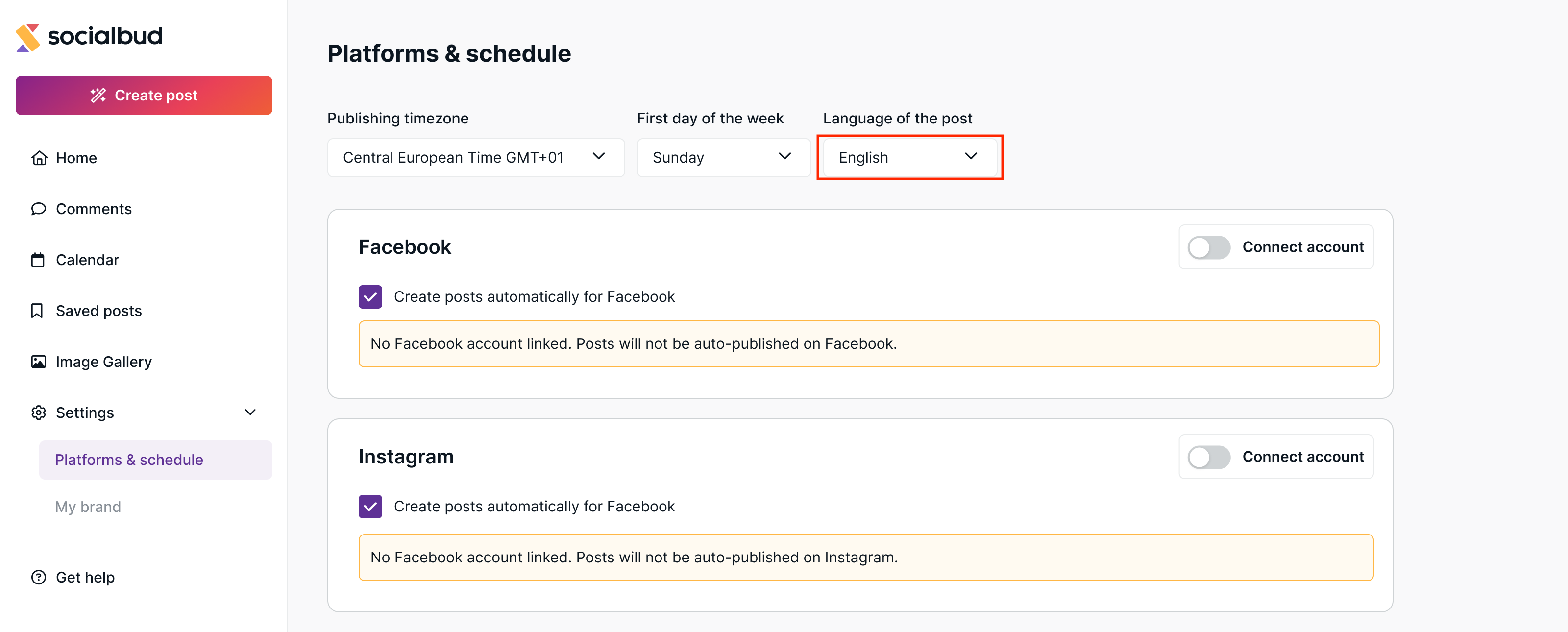
How to set post language:
Locate the Language of the posts section.
Choose your desired language from the dropdown menu.
Save your changes.
The Platforms section enables you to connect your social media accounts with SocialBud, a crucial step for publishing content across channels.
To post content seamlessly across platforms, you need to link your social media accounts to Socialbud. Supported platforms include:
Connected platforms
Once your accounts (e.g., Facebook, Instagram) are linked, all types of content -auto-generated posts, AI-generated posts, and manually created posts - will be scheduled, and published automaticaly on those platforms.
Adding platforms later
If you connect additional platforms later, any future posts (auto-generated, AI-generated, or manually created) will also appear, schedule and publish on those platforms.
Inactive platforms
If no platforms are linked, the post will be scheduled, but won't be published. Ensure at least one platform is connected to enable publishing.

Click the Connect account button on the Platforms and schedule page.
Follow the step-by-step instructions provided.
Verify that your accounts are successfully linked.
Learn more:
Connecting your social channels to Socialbud
How to connect your social media platform account to Socialbud
Efficiency: Automate post scheduling and save time.
Consistency: Ensure regular posting to keep your audience engaged.
Customization: Tailor your posting schedule to fit your brand’s strategy and audience.
Automatic posting lets you schedule content in advance, ensuring your profiles stay active even when you're busy.
Click the Tell me more button to access a detailed guide that explains:
How automatic posting works.
How to customize it for your specific needs.
Learn more:
Automatically created posts
How Do Auto-Generated Posts Work? How Can You Use Them? How Can You Customize Them?
