Members is where you invite people to the workspace and manage who already has access. Open it from Settings, then Members. Only an owner or a manager can use this page. People you invite join as a Member.
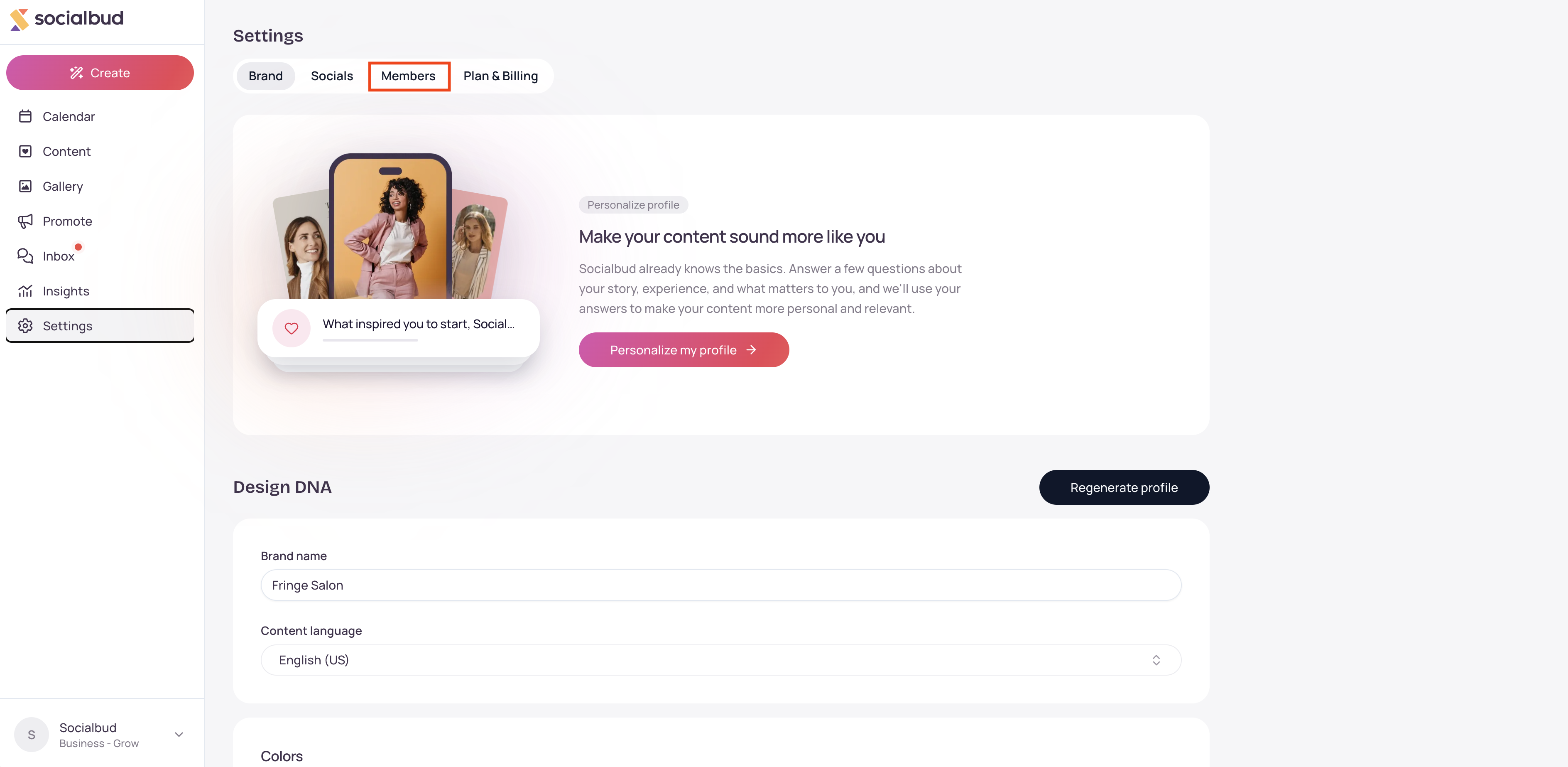
Open Settings and select Members.
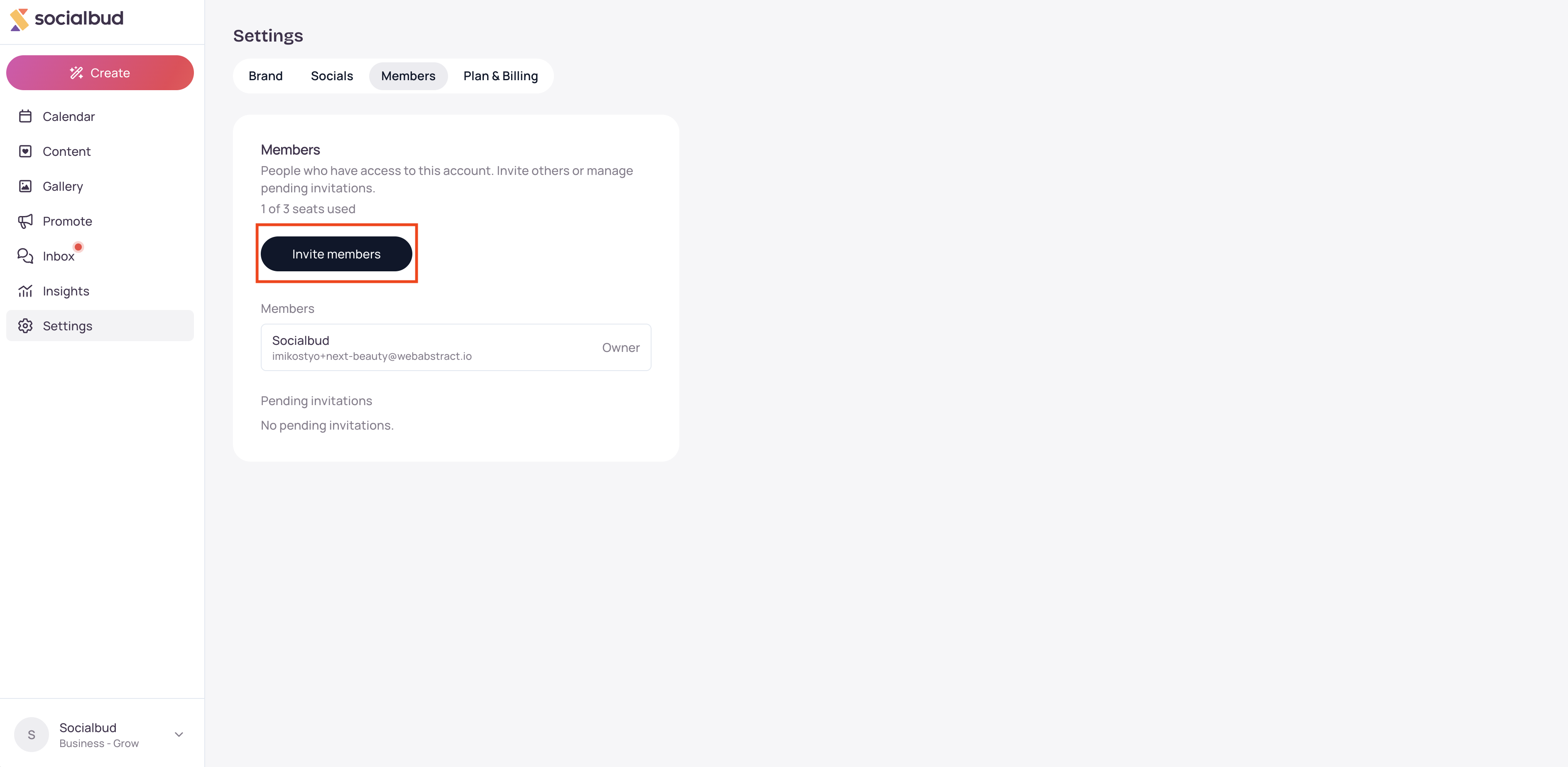
The card is titled Members. The line under it says People who have access to this account. Invite others or manage pending invitations.
When your plan has a seat limit, the page also shows {used} of {limit} seats used. Seats include people already on the workspace and pending invitations. The owner counts as a seat.
Invite members opens a dialog titled Invite member. Enter an email, then select Send invitation. That person gets an email with a link to sign up or sign in.
The invitation stays under Pending invitations until they join, you revoke it, or it expires. Use Resend for a new email, or Revoke to cancel it.
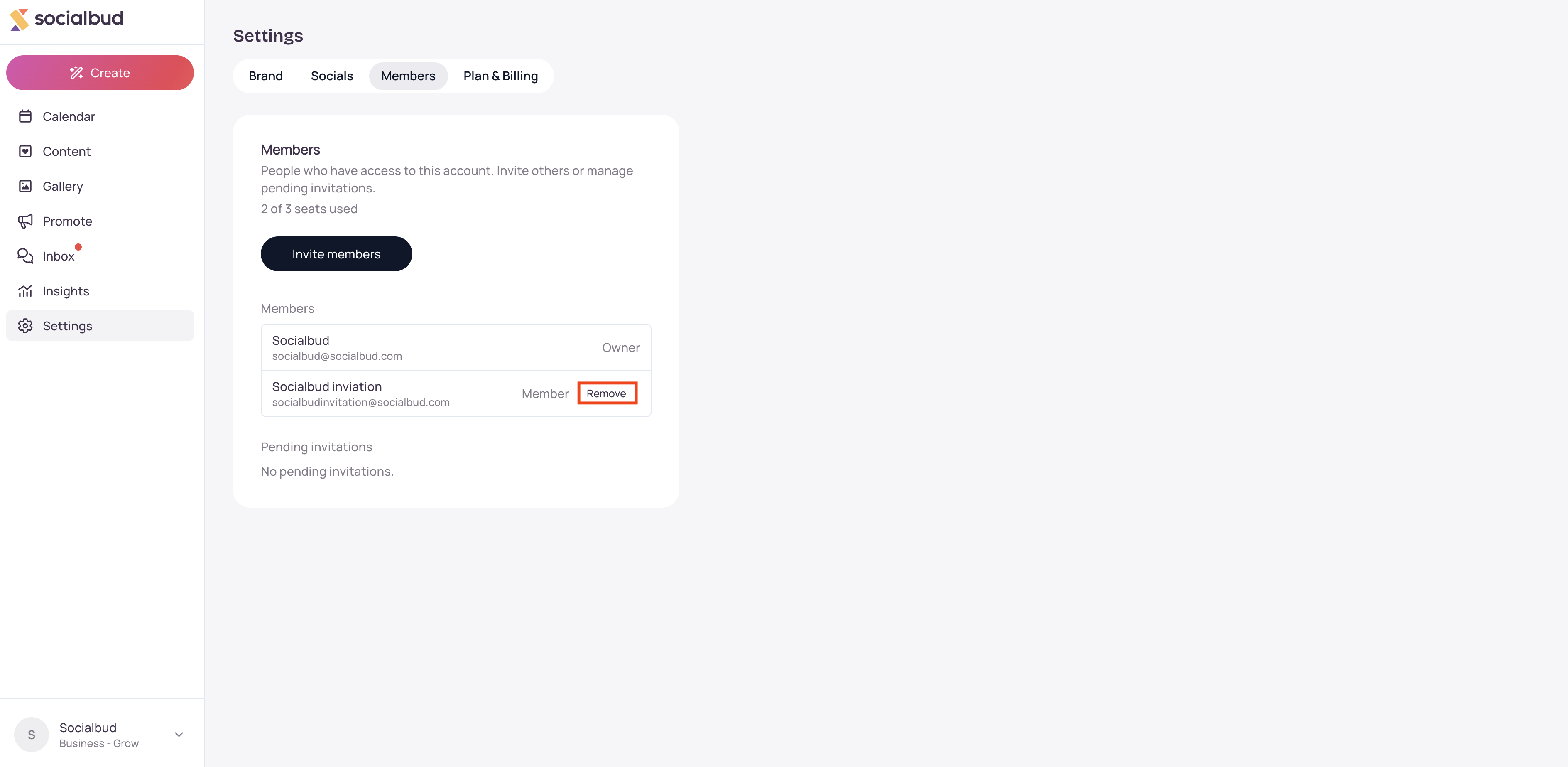
After they accept, they appear under Members with the role Member. Roles on the list can also show Owner or Manager.
Open Settings and select Members.
Select Invite members.
Enter the person's email. The field says [email protected].
Select Send invitation, or Cancel to close without sending. While it sends, the button says Sending….
Ask them to open the email and use the invitation link with that same email address.
To remove someone later, select Remove next to their name. The dialog is titled Remove member and says they will lose access immediately. Select Remove to confirm, or Cancel to keep them.
Only an owner or a manager can open Members. A person with the Member role does not see this tab.
An invitation is valid for 7 days. If it expires, send a new one with Resend, or invite the email again.
The person must use the email that was invited. If they are signed in with a different email, Socialbud says Wrong account.
Invited people join as a Member. They can use the product. They cannot invite others, manage invitations, or change the plan.
A Manager can invite and remove people. An Owner can also manage billing and delete the workspace. You cannot change roles on this page.
You cannot remove yourself from Members. Use Leave account on Plan & Billing.
You cannot remove the only owner. The workspace must keep an owner.
When seats are full, Invite members is disabled. Remove a person, revoke a pending invitation, or upgrade the plan. The page also offers Upgrade plan.
Pending invitations count toward the seat limit until they are accepted or revoked.
You do not see Members. You need to be an owner or a manager, and the plan has to include account members. Ask the owner, or open Plan & Billing.
You see "Your plan doesn't include inviting members." That plan does not allow invites. Select Upgrade plan.
You see "Choose a plan to invite members." Pick a plan first on Plan & Billing.
You see "You've reached your plan's member limit." Remove a member, revoke a pending invitation, or upgrade. The page says Remove a member or revoke a pending invitation to free a seat, or upgrade your plan.
You see "This user is already a member." That email is already on the workspace. Check the members list.
You see "An invitation has already been sent to this email." Use Resend on that pending invitation, or revoke it first.
The invitee sees "Invalid or expired invitation." Ask an owner or a manager to select Resend, or send a new invite.
The invitee sees Wrong account. They must sign in or sign up with the invited email.
You cannot remove yourself. Use Leave account on Plan & Billing.
Remove fails for the owner. The workspace must keep an owner. You cannot remove the only owner from here.
What role do invited people get? Member. They can create and publish content. They cannot manage Members or billing.
Do pending invitations use a seat? Yes. Until someone accepts, or you revoke the invitation, that seat stays reserved.
Can I promote someone to Manager or Owner here? No. This page invites people as Member and can remove them. Role changes are not offered here.

