Open Insights in the main menu. The page opens on Last 30 days. The title is Insights.
If Insights is not included on your plan, you see Understand what's working for your brand, with Upgrade plan. Publishing still records performance while the page is locked. After you upgrade, earlier published posts are included. If Insights is missing from the menu, this plan does not offer it.
The numbers cover published posts in the range you pick. Drafts and posts that are only scheduled do not appear until they publish. The same post on two networks counts once in Total posts.
At the top, choose a range:
All time
Today
Last 7 days
Last 14 days
Last 30 days
Custom range — pick a start and end on the calendar, then Apply. Future dates cannot be selected. Until you pick dates, the button says Pick a range.
The page then shows these sections:
Overview — Total posts, Total reach, and Avg. engagement rate.
Audience growth — Follower count over time, per platform.
Platforms — How each social network compares. Includes Share of all posts by network, plus posts, engagement, average likes, average views, and share of posts.
Content formats — Which post formats you use, and how they perform. Formats are Single image, Carousel, Video, Story, and Video carousel.
Posting pattern — When your posts perform best, by day and time. The chart Best days & times to post uses days Monday–Sunday and times from 6am to 9pm. Darker squares = higher average engagement rate. Lower and Higher mark the scale.
Best-performing posts — Top 20 posts by engagement. Columns are Post, Network, Likes, Reach, and Engagement. A long list has Show more and Show less.
Company-shared vs. original content — only if this workspace belongs to a company. It compares Company-shared posts and Original posts, each with an Engagement rate.
Click a row under Best-performing posts to open Post details. That view is for reading the post. Editing stays in Content.
A section with nothing in the range says No data for the selected period.
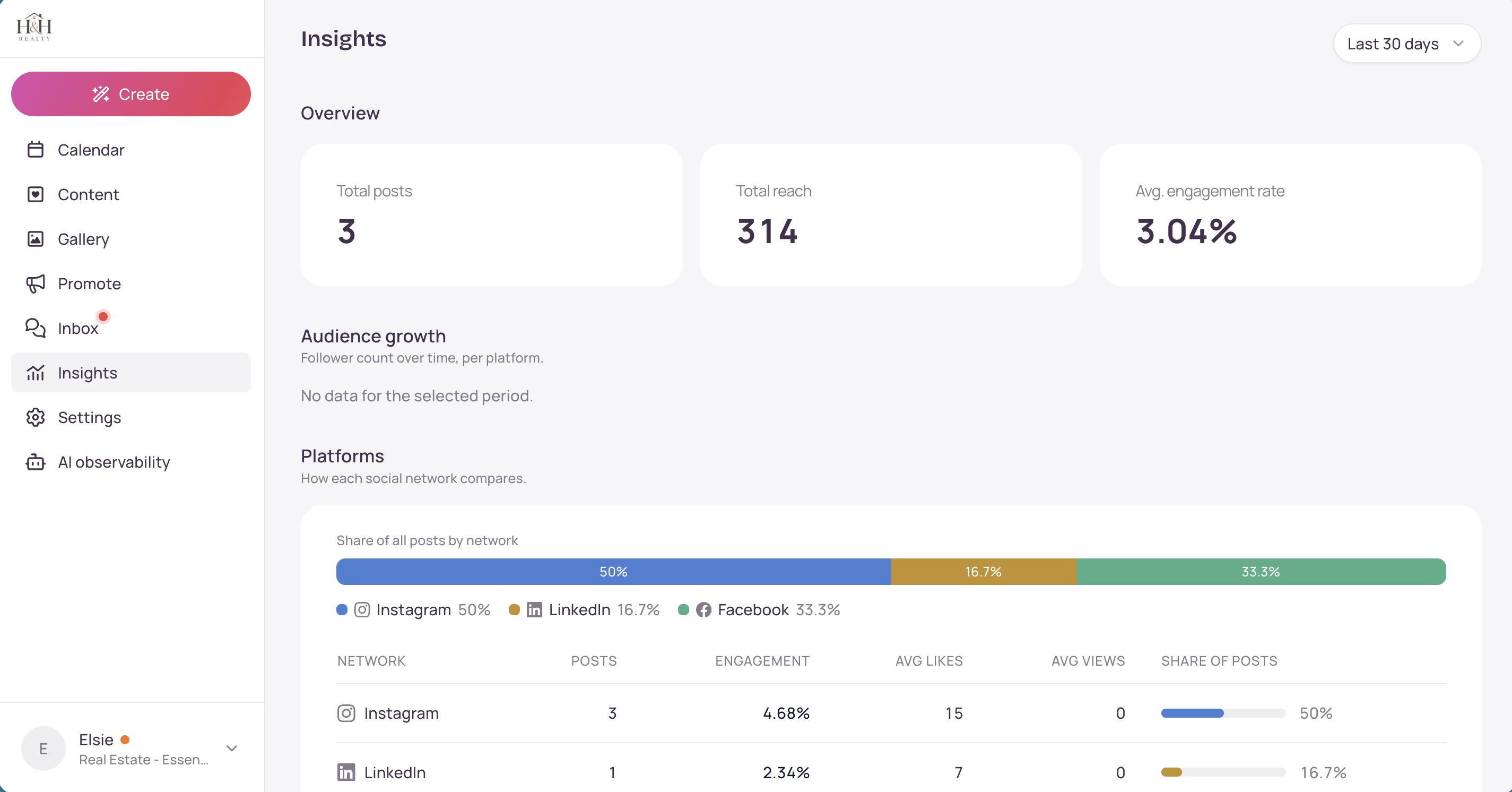
In the main menu, open Insights.
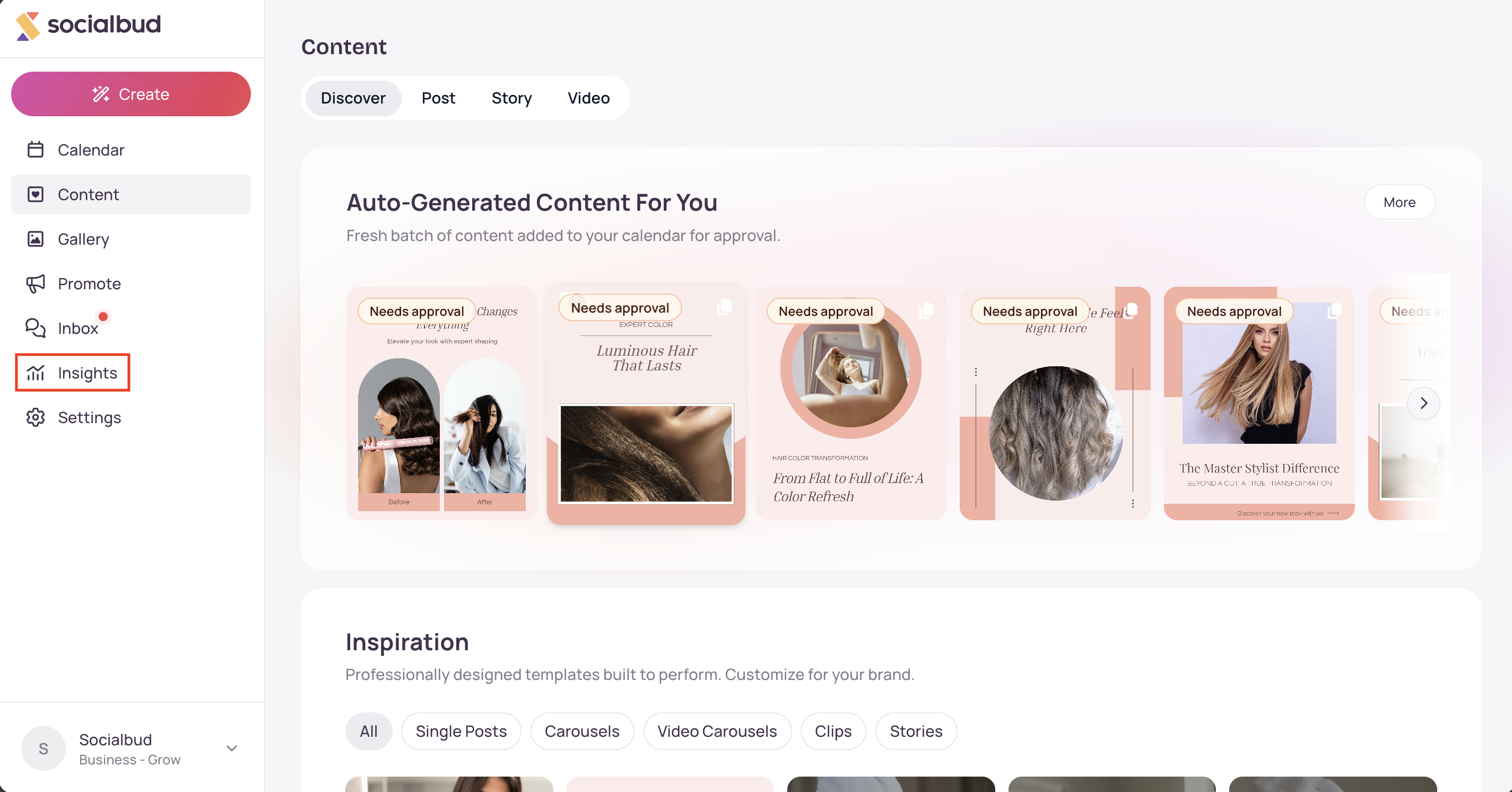
Leave Last 30 days, or choose another range. For your own dates, choose Custom range, select the start and end, then Apply.
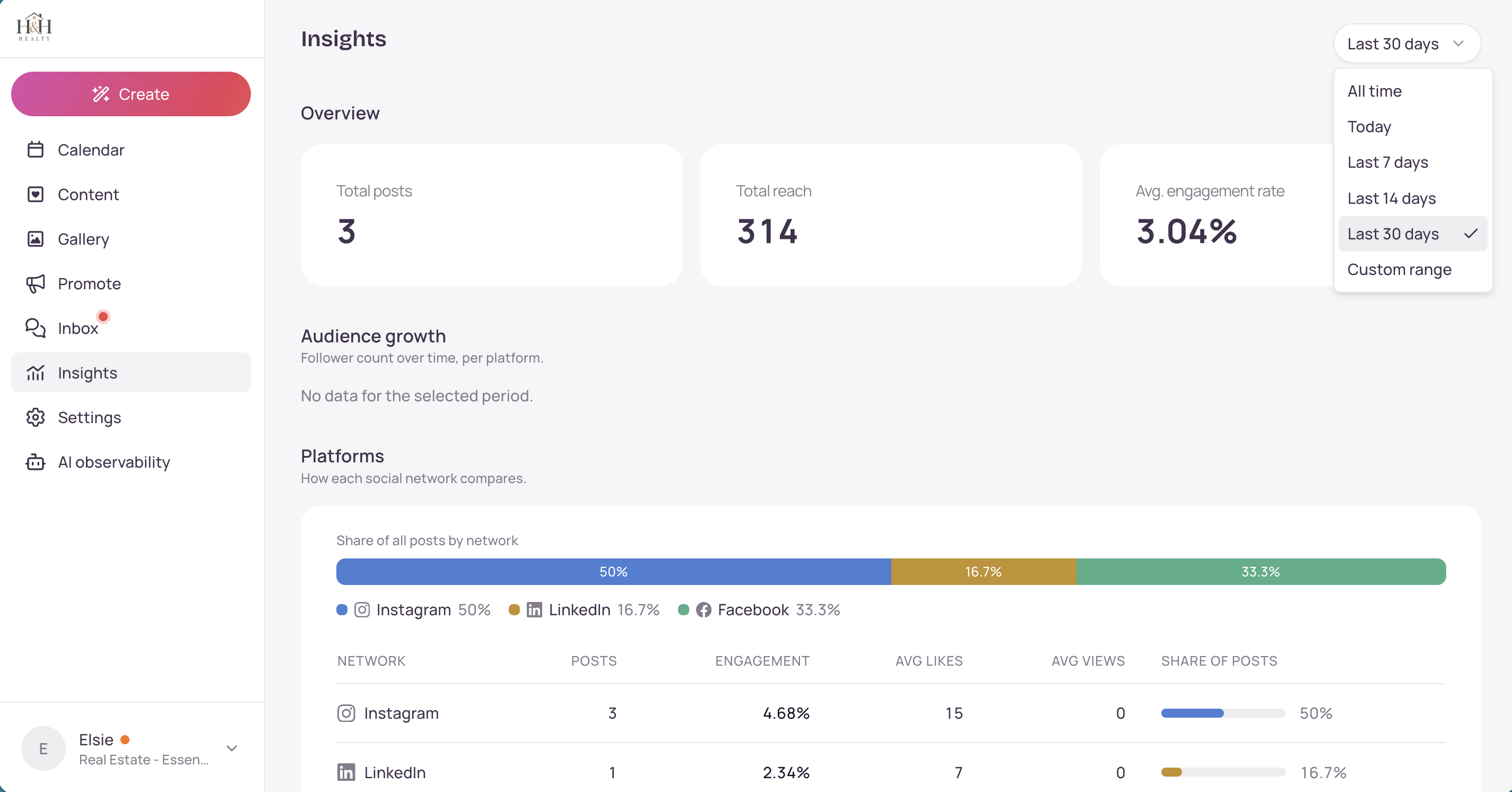
Read Overview for the totals, then Platforms and Content formats to see where posts and engagement come from.
Use Posting pattern to see which days and times had the higher engagement rate.
Under Best-performing posts, click a post to open Post details.
If the page asks you to upgrade, choose Upgrade plan. That opens Plan & Billing.
Anyone in the workspace can open Insights. It is not limited to the owner.
Likes, reach, views, and follower counts come from the connected networks. A network that has not reported numbers yet will not fill that part of the page.
Avg. engagement rate and the posting-pattern squares are engagement, not how many posts you made.
Changing the range reloads every section. One section can fail on its own and show Failed to load this section. The others still load.
Company-shared vs. original content is hidden when the workspace is not part of a company.
What you see | What to do |
|---|---|
Understand what's working for your brand and Upgrade plan | Insights is not on this plan. Choose Upgrade plan, or open Plan & Billing and pick a plan that includes it. |
Insights is not in the main menu | This plan hides Insights. There is no upgrade screen on this workspace. |
No data for the selected period. | No published posts, or no follower history, fall in that range. Try Last 30 days or All time, and confirm the posts actually published. |
Failed to load this section. | That section did not load. The rest of the page can still be used. Reload Insights. |
Failed to load insights data. | The whole page failed to load. Reload Insights. If it keeps failing, contact support. |
Failed to load post details. | The post preview did not open. Click the row again. |
Invalid date range. | Choose Custom range again, pick both a start and an end, then Apply. |
Didn't find the answer to your question? Contact us, and we'll be happy to help!
