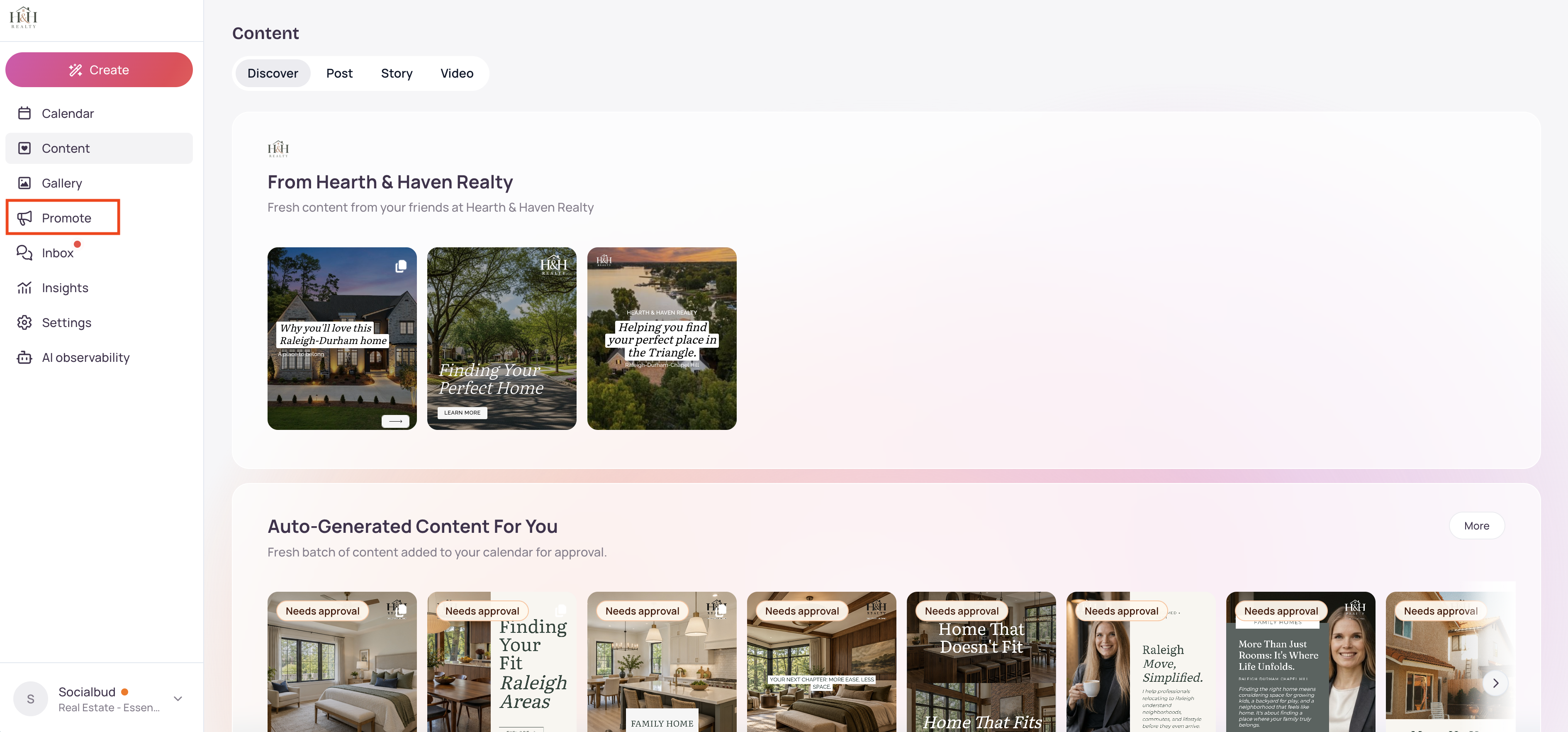
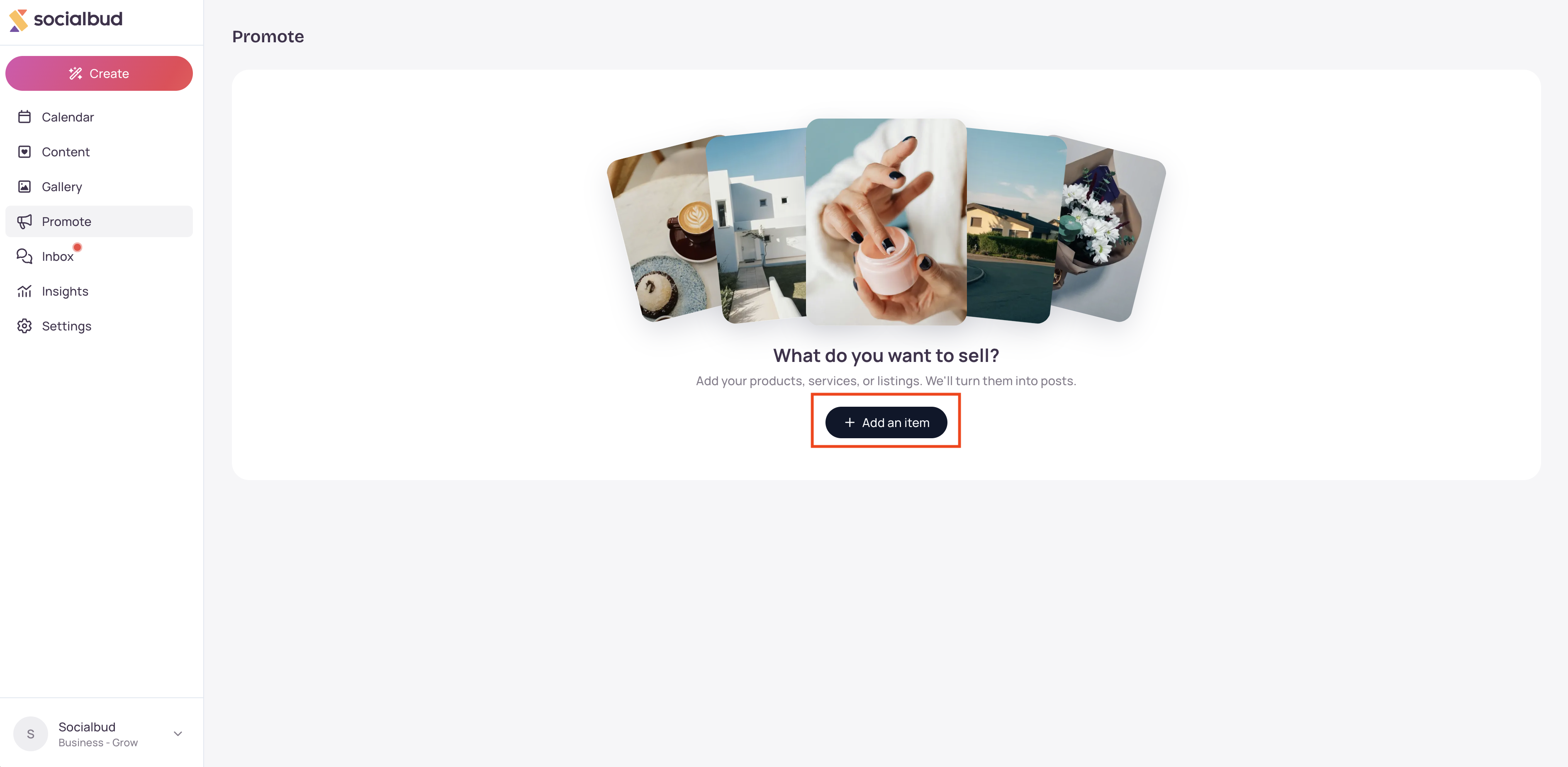
Open Promote in the main menu. The page title is Promote. If you have not added anything yet, you see What do you want to sell? and Add an item. Once you have items, the page says Add your products, services, or listings. We'll turn them into posts. Use Search to find an item by name, or Add item to add another.
Each item you keep counts toward your plan's item limit. That limit does not reset with your billing period. Deleting an item frees a slot. When you are at the limit, adding is turned off and you see You've reached your plan's item limit. and Delete an item to free up a slot, or upgrade your plan to add more. If Promote is not on your plan, you see Your plan doesn't include Promote. and Choose a plan to start adding items.
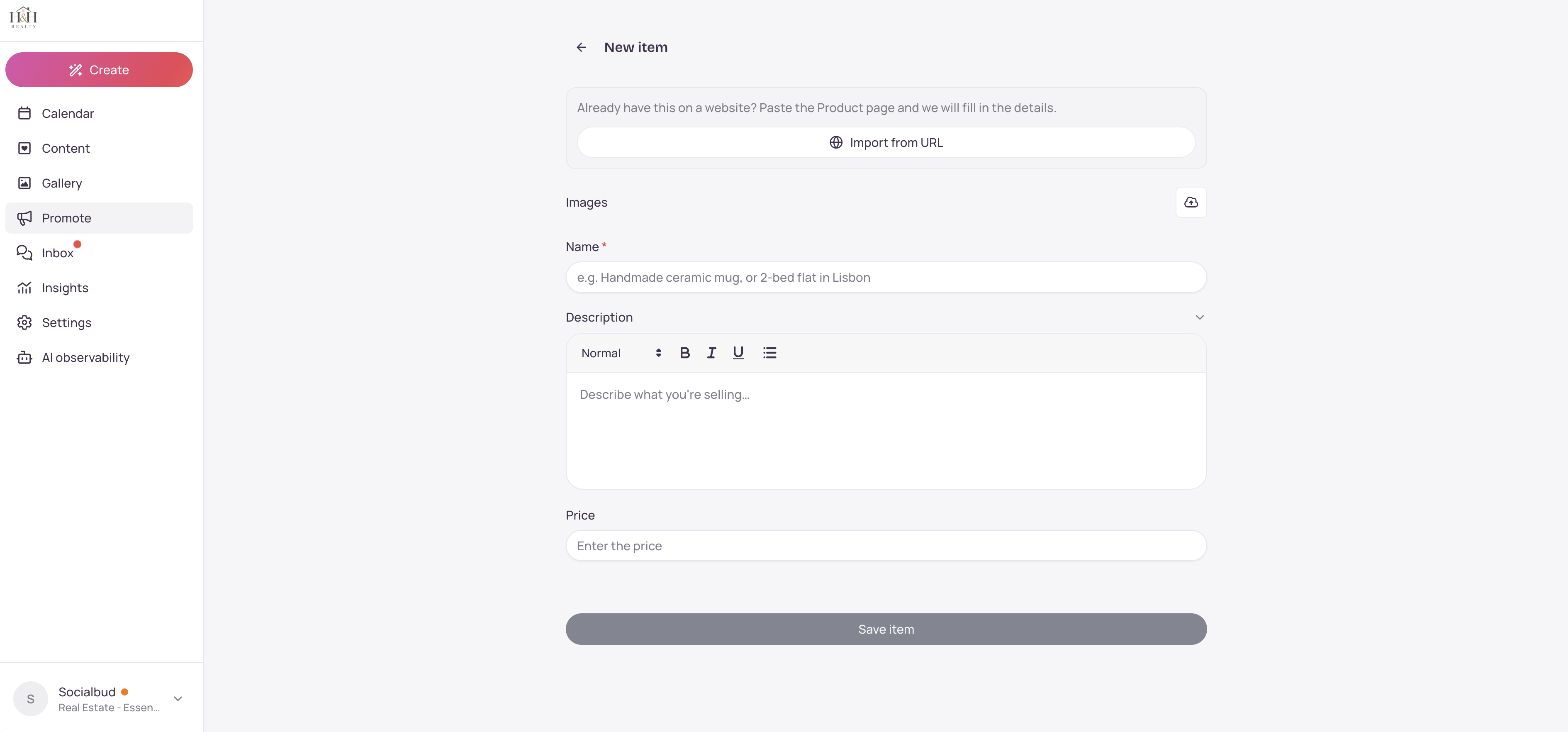
An item holds the details and photos Socialbud uses when it writes posts: a name, a description, and any photos you add or import.
Add an item opens a new draft named New item. Nothing is stored as a finished item until you choose Save item. You can fill it in yourself, or use Import from URL to pull details from a page you already have online.
Saving a new item starts a batch of draft posts about it. Socialbud tells you Writing {count} posts about {name}, then They land as drafts — nothing is published until you say so. Choose Take me to Content to open Content, or Not now to stay on Promote. The drafts show up in Content when they are ready, even if you close that message.
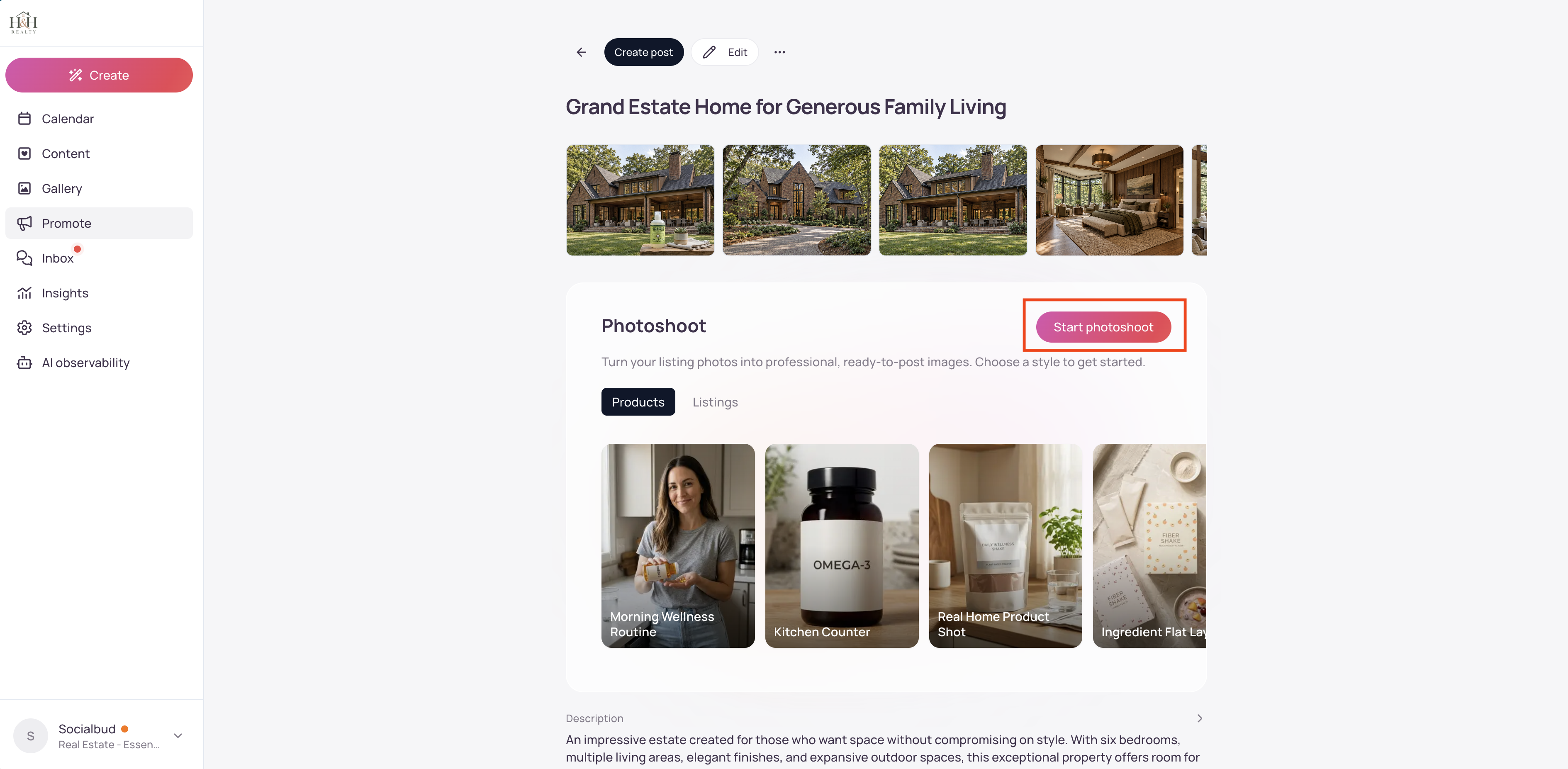
A saved item can also show a Photoshoot section when your plan includes Photoshoot images. Photoshoot makes a new image from one photo already on that item. It uses its own allowance, counted per billing period, separate from the item limit.
In the main menu, open Promote.
Choose Add an item (or Add item if you already have items).
Replace the name New item, add a description, and add photos if you have them.
Choose Save item.
Open the new item.
Choose Import from URL. The page says Already have this on a website? Paste the Product page and we will fill in the details.
Under Paste a link, paste the address and choose Import.
Wait while Socialbud reads the page. Check the name, description, and photos, then choose Save item.
If you already imported that same link, Socialbud says You already have an item from this link. and does not import it again.
Photoshoot sits on a saved item. It turns one product or listing photo into a new image in a style you pick. It does not publish anything.
Open the item in Promote.
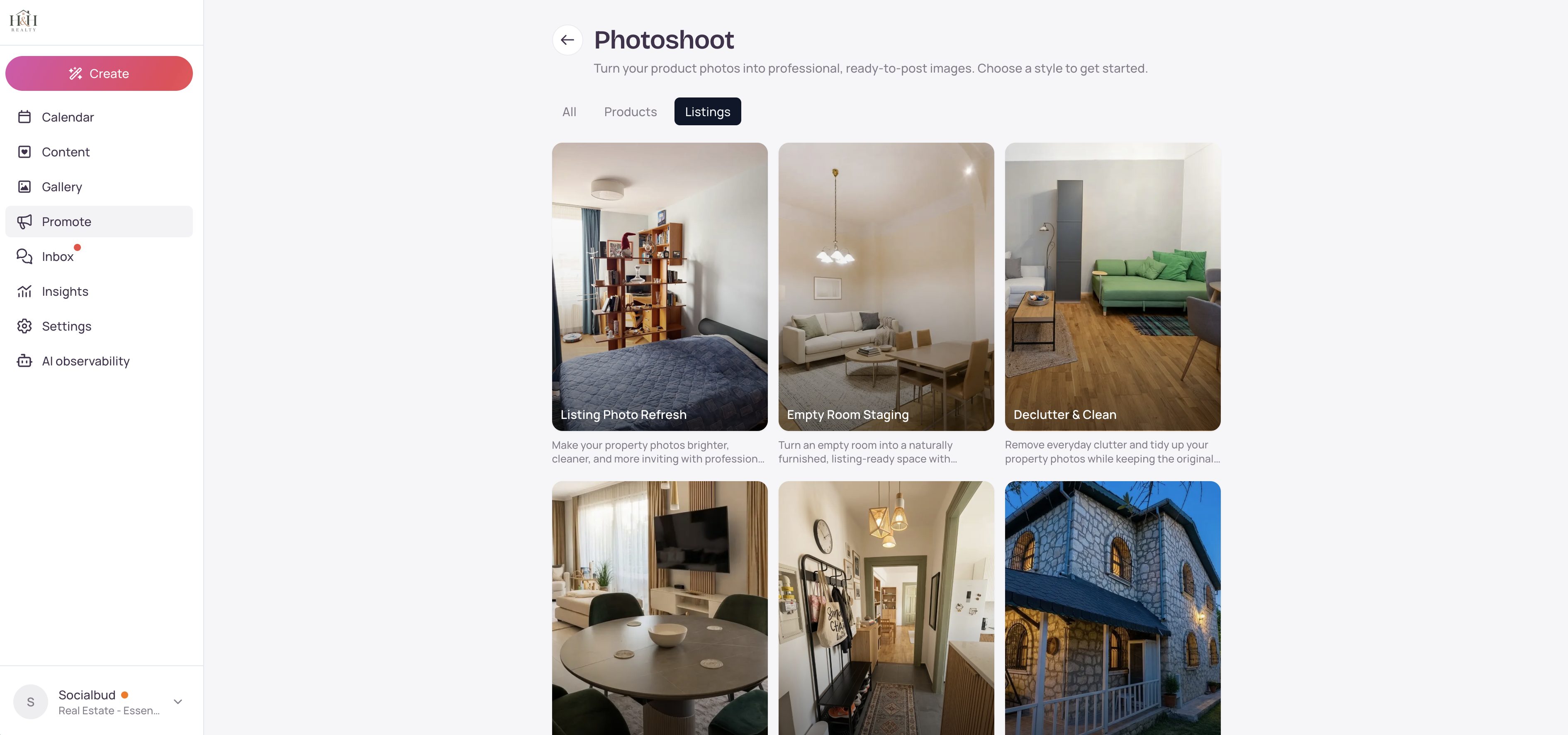
In the Photoshoot card, choose Start photoshoot, or tap a style in the row. The card says Turn your product photos into professional, ready-to-post images. Choose a style to get started. On a listing it says Turn your listing photos into professional, ready-to-post images.
On the Photoshoot page, pick a style. You can switch category if more than one is shown.
Under Product photo, Socialbud starts from one photo already on the item. Choose Change photo or Choose photo, then Choose from gallery, if you want a different one.
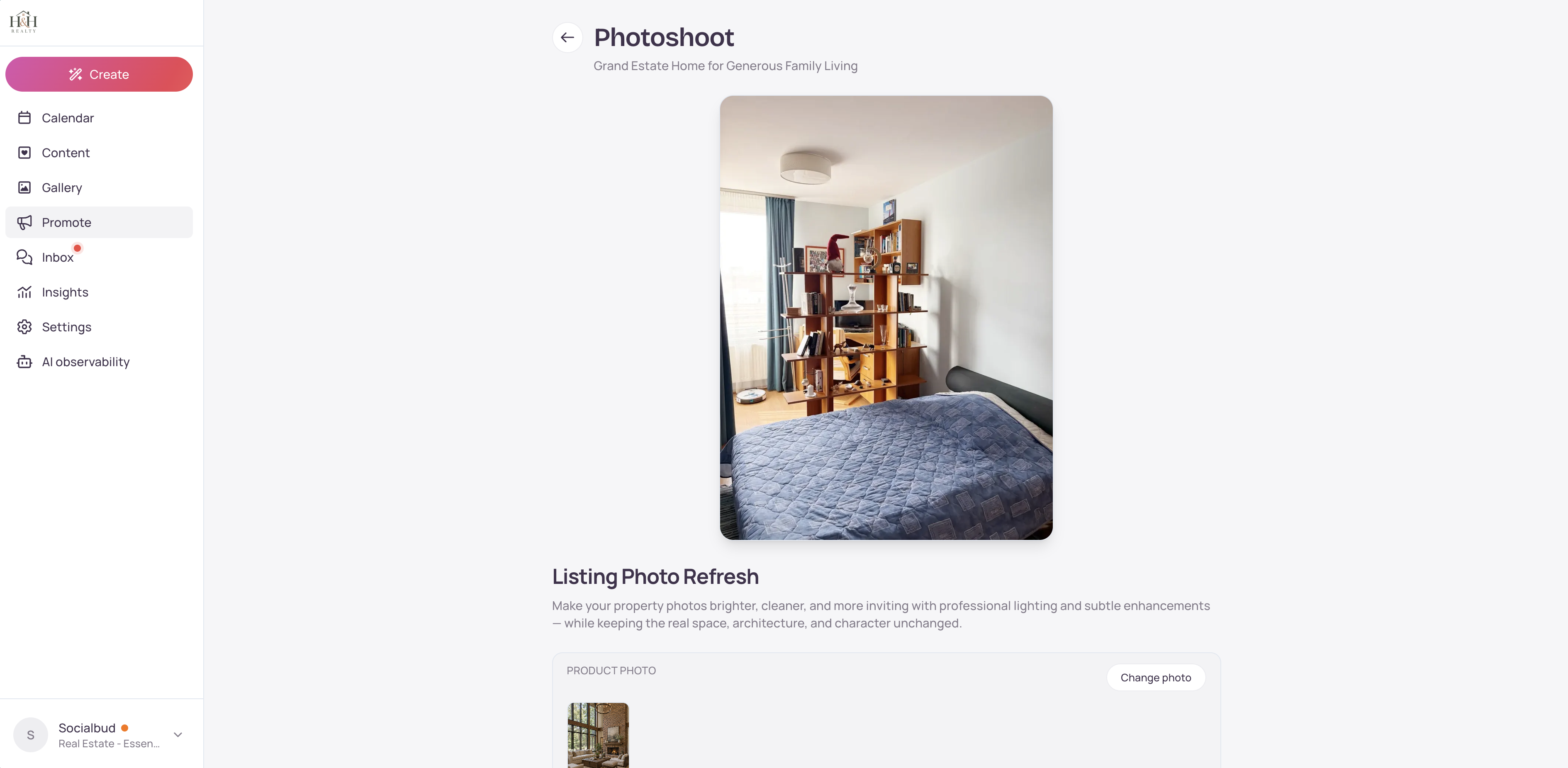
Choose Create photo and stay on the page until the image appears.
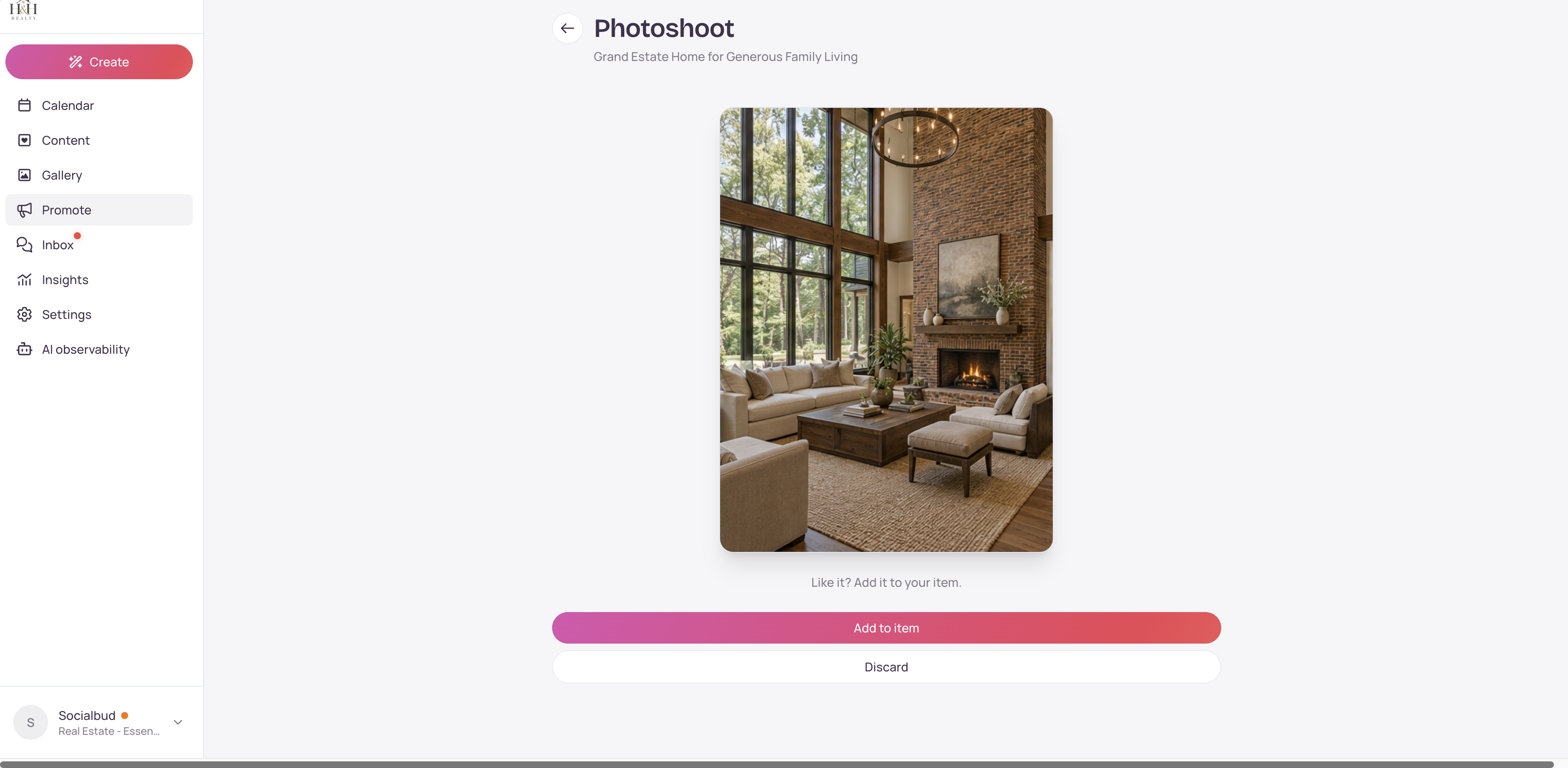
When you see Like it? Add it to your item., choose Add to item. The photo is added to that item. Discard drops the new image and does not keep it.
Draft posts from an item are not published. Review them in Content, then schedule or publish the ones you want.
Photoshoot needs a photo on the item. If none is selected, Create photo stays off and Socialbud asks you to select a product photo.
Each successful Create photo uses one Photoshoot image from this period. Discard does not give that use back.
If you try to leave while a photo is still being created, Socialbud says Photoshoot in progress. Leaving now still uses a photoshoot credit, but you may not receive the finished image. Choose Wait to stay, or Leave anyway.
When the period allowance is used up, you see You have used all {limit} Photoshoot images for this period. or You have reached your Photoshoot limit for this period. The allowance resets on your next billing period. Unused images do not roll over.
If Photoshoot is not on your plan, the Photoshoot card is not shown. Opening Photoshoot another way shows Photoshoot is not available on your current plan.
Gallery has its own Photoshoot for photos of you. That one saves with Save to selfies, not Add to item.
Open an item's menu and choose Delete item to remove it. That frees a slot on your item limit. There is no extra confirmation step.
What you see | What to do |
|---|---|
Your plan doesn't include Promote. or Choose a plan to start adding items. | Promote is not on this plan. Open Plan & Billing and choose a plan that includes items. |
You've reached your plan's item limit. | Delete an item you no longer need, or upgrade. The limit counts items you keep, not a monthly reset. |
You already have an item from this link. | Open the item you already imported. A second import of the same page is skipped. |
We couldn't reach this link. Check the address and try again. | Check the address, then choose Import again. |
We couldn't get enough from that page. Try another URL or add the item manually. | Fill in the item yourself, or try a different page. |
Import failed. Please try again. or Import timed out. Please try again. | Run Import again. If it keeps failing, add the details yourself. |
Select a product photo before creating a photoshoot. or Choose a product photo to use for this photoshoot. | Add a photo to the item, or choose Choose photo and pick one from the gallery. |
Could not create your photo | Stay on the style and try Create photo again. If you left mid-way, that attempt can still use a Photoshoot image. |
Could not add to item | Choose Add to item again. Until that succeeds, the new image is not on the item. |
No photoshoot styles are available yet. Check back soon. | No styles are available for this account right now. Try again later. |
Photoshoot is not available on your current plan. | Photoshoot images are not included. Upgrade from Plan & Billing if you want them. |
Didn't find the answer to your question? Contact us, and we'll be happy to help!
