The Socials tab in Settings is where you connect the social accounts this workspace publishes to. Once an account is connected, Socialbud can publish and schedule posts to that platform. Connecting or disconnecting an account does not change posts that have already been published.
Open Settings in the left navigation. Settings opens on Brand.
Select the Socials tab.
Click Connect platforms (when nothing is connected yet) or Connect accounts (when you already have connections).
A connection window opens. Choose the platform, sign in there, and approve access.
When the connection finishes, the platform appears on Socials with a Connected badge.
To remove a platform, click Disconnect, then confirm.
In the left navigation, click Settings.
At the top of the page, select Socials.
The other tabs are Brand, Members (if your role includes it), and Plan & Billing.
If you have not connected anything yet, you’ll see Let’s connect a few platforms so that you can start postingand a Connect accounts or Connect platforms button.
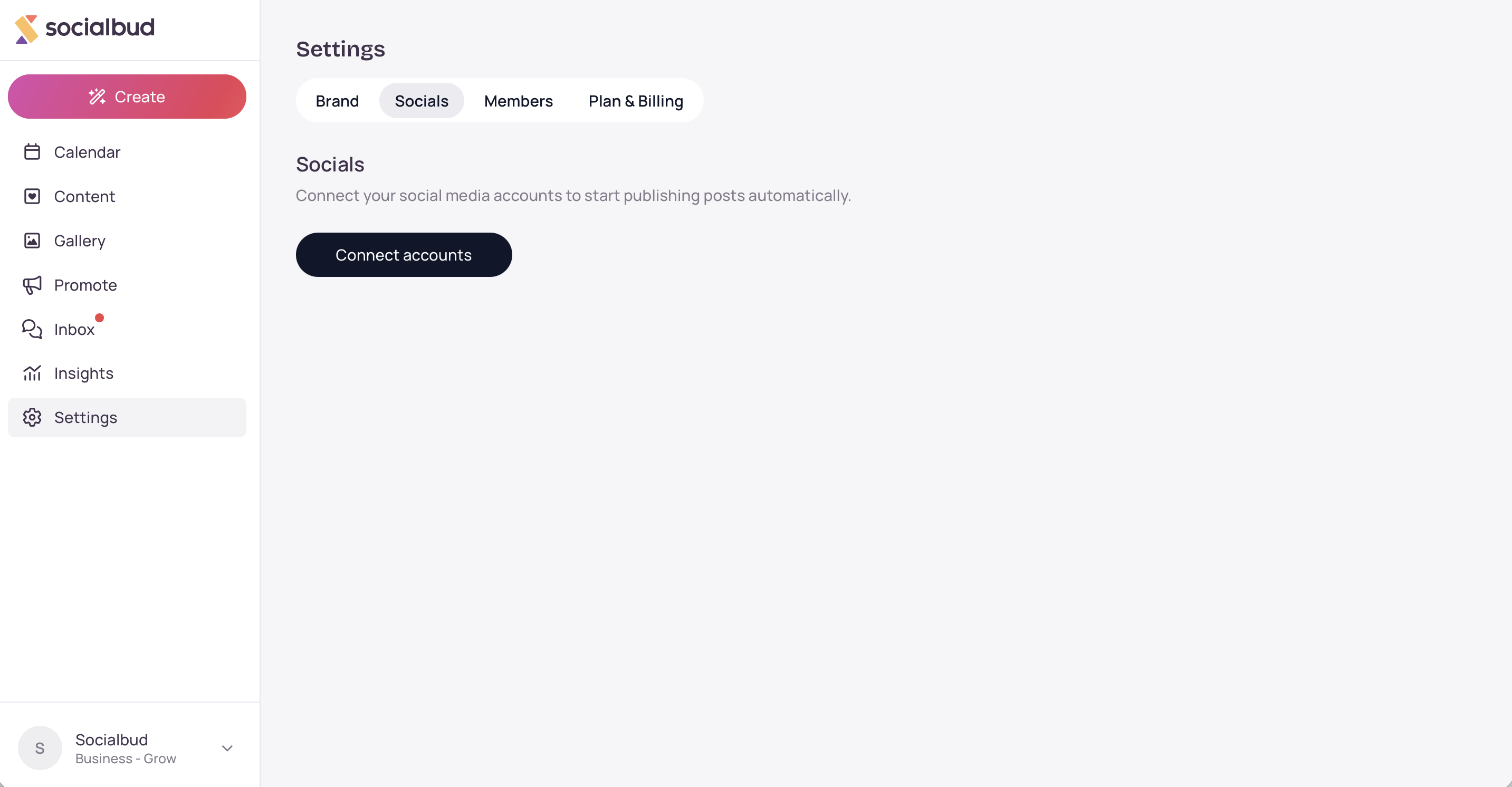
If you already have connections, click Connect accounts.
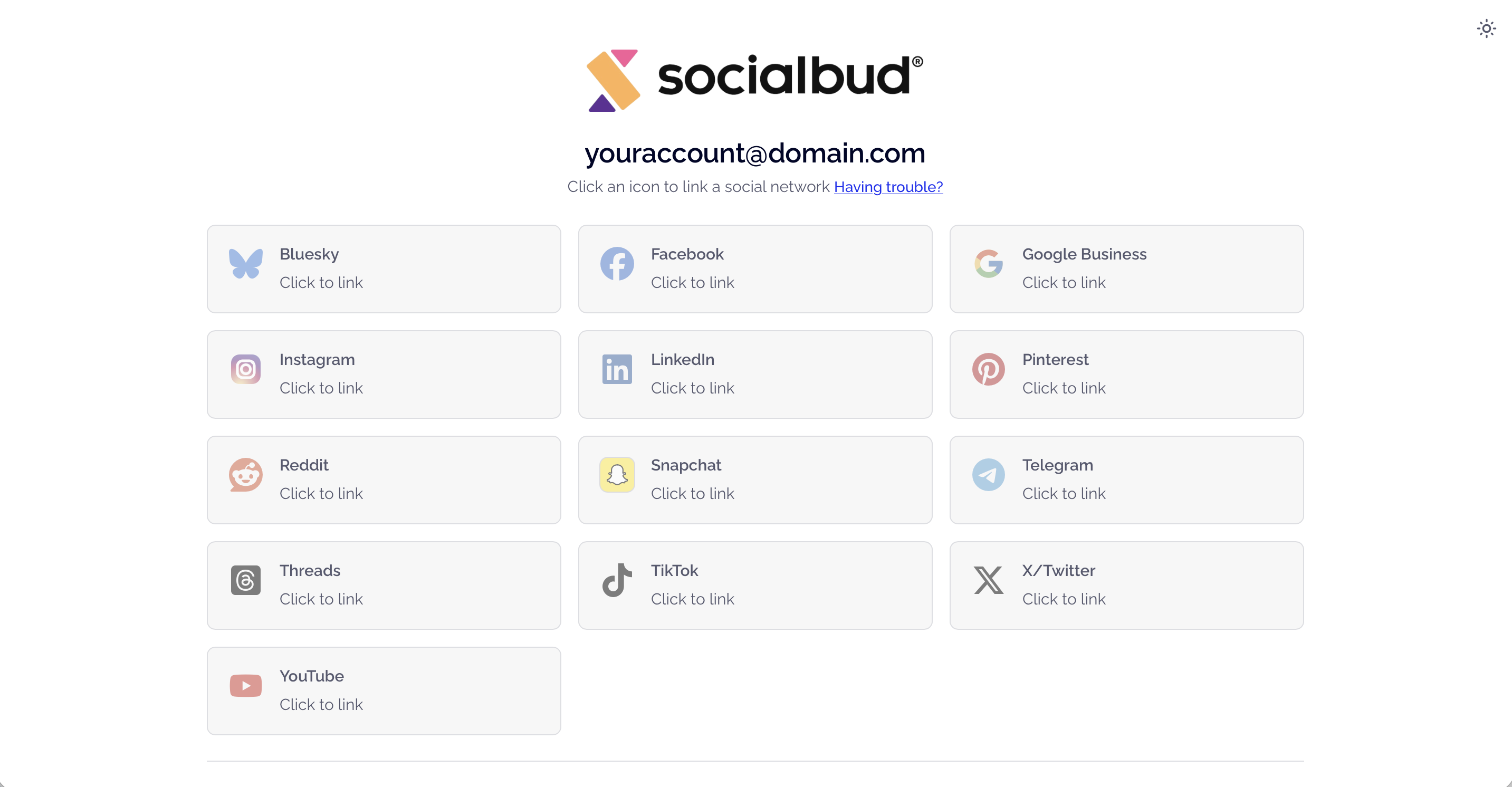
While the window is open, Socialbud shows Waiting for connection… or Opening….
Finish signing in on the platform. The card updates to Connected and shows the account name or handle when the platform provides one.
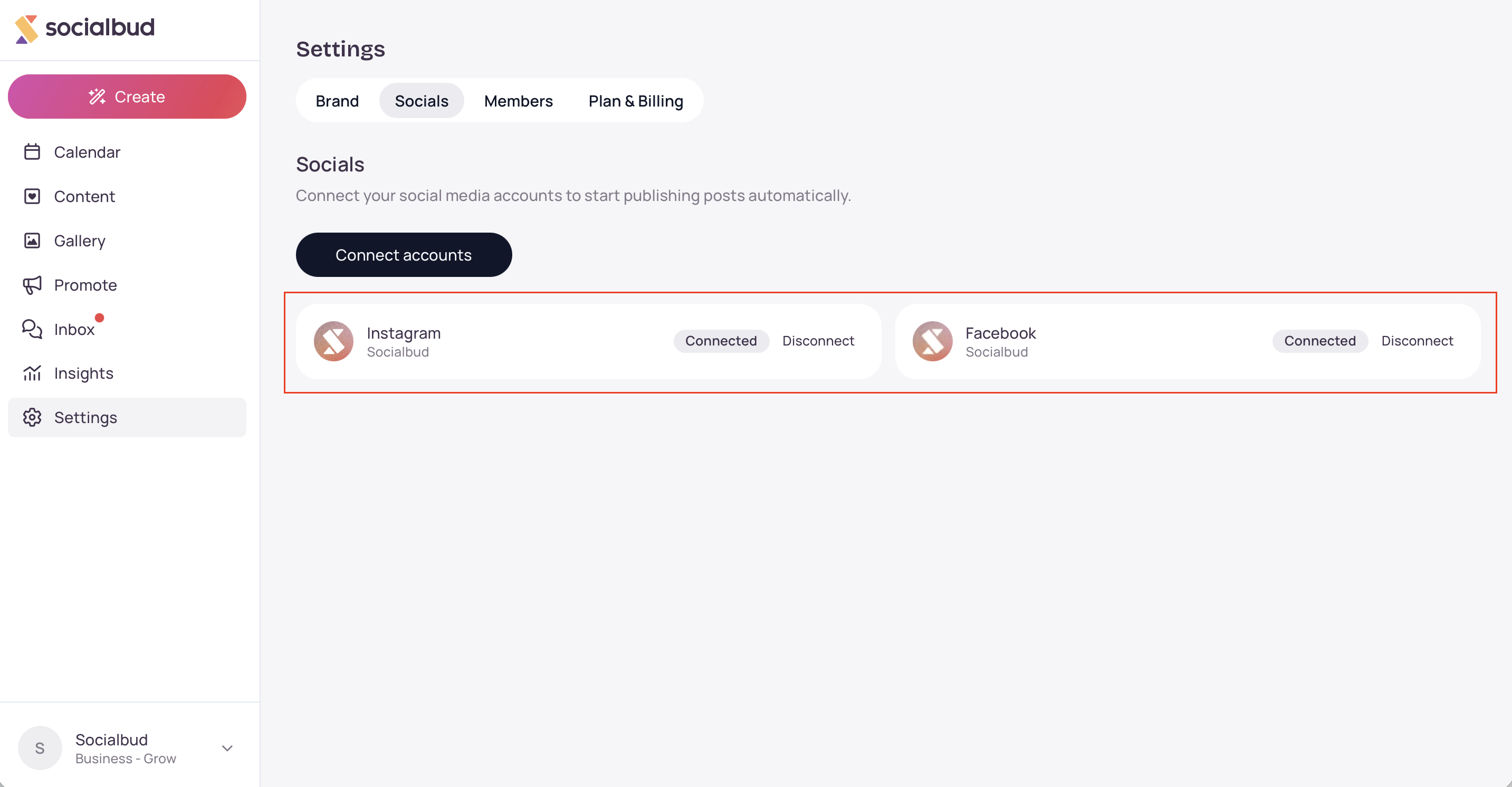
You can connect more than one platform. Each connected platform is shared by the workspace, so other people on the same account use the same connections.
Facebook, Instagram, LinkedIn, X / Twitter, TikTok, and YouTube.
These platforms are marked Beta: Google Business Profile, Bluesky, Threads, Pinterest, Snapchat, Telegram, and Reddit. Beta platforms can be connected and used for publishing the same way. Socialbud may ask you to confirm before you publish to a Beta platform for the first time.
On the platform card, click Disconnect.
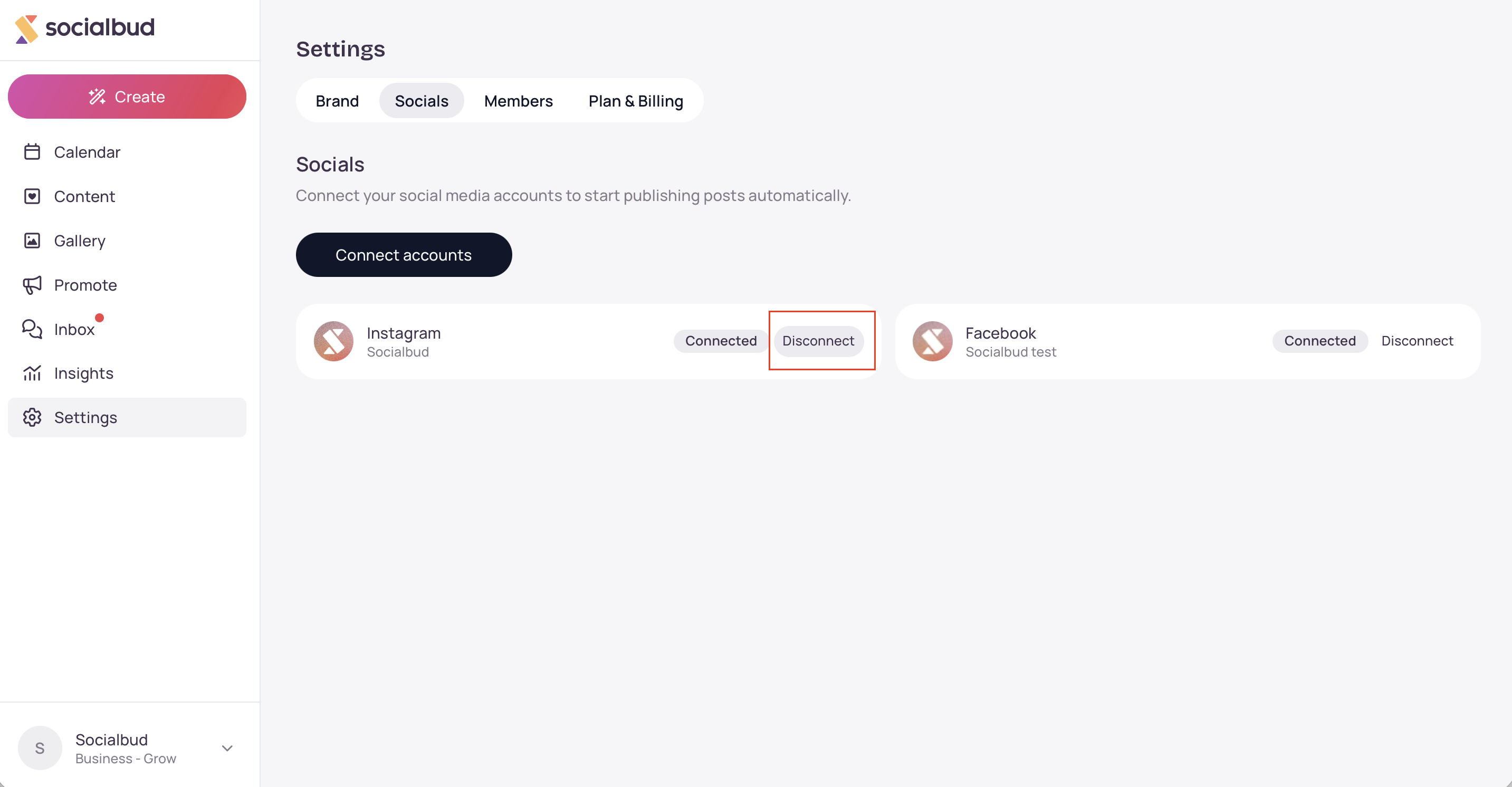
Confirm Disconnect. The card stays in the list with a Disconnected badge, so you can connect that platform again later.
Click Cancel in the confirmation if you want to keep the connection.

Publishing from Socialbud depends on your plan. If Socials shows Create once. Publish everywhere., connecting accounts is not included on the current plan. Upgrade plan takes you to plan options.
Only an owner or a manager can connect or disconnect platforms.
A platform you disconnect can be connected again at any time.
Your content language, colors, logo, and post styles are on the Brand tab, not on Socials.
I don’t see Connect accounts. If the page shows Create once. Publish everywhere., this workspace’s plan does not include publishing. Use Upgrade plan, or ask the account owner to change the plan.
The connection window never opens. Allow pop-ups for Socialbud, then click Connect platforms or Connect accounts again.
The window closed and nothing changed. Wait for Waiting for connection… to finish, then refresh the page. If the platform still is not Connected, start the connection again.
A card says Reconnect required. Open Connect accounts and sign in to that platform again.
Disconnect doesn’t work, or Connect does nothing. You need to be an owner or a manager of this workspace. Members can’t change social connections.
I disconnected a platform by mistake. Click Connect accounts and connect it again. The old card remains, marked Disconnected, until you do.

