The Posts section is your central content library. Here you can create, review, schedule, and track all your posts in one place.
Posts are organized into tabs based on their status
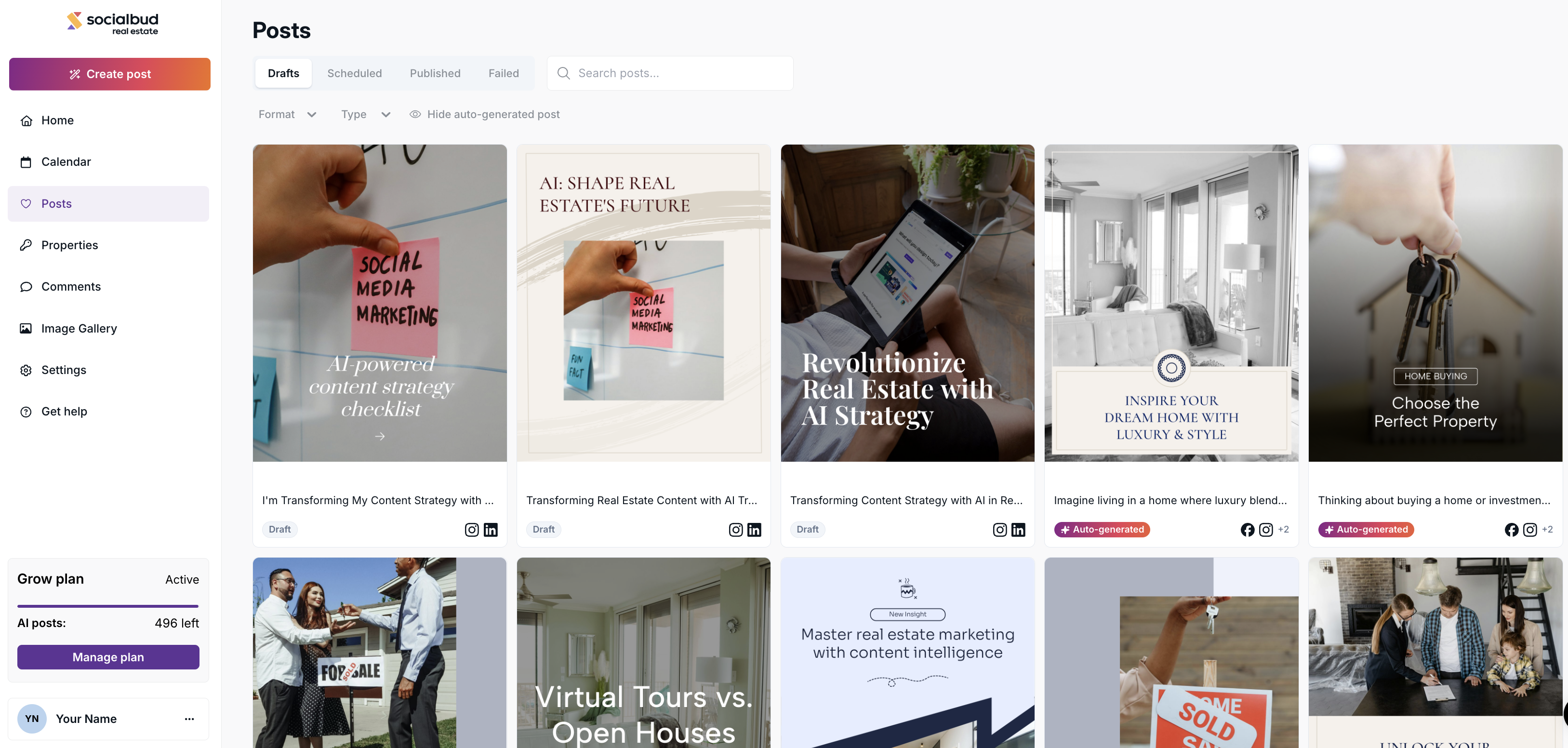
The Drafts tab is your staging area.
It contains all content that does not yet have a set date or time.
What’s inside:
Auto-generated posts,
and Draft posts (content generated Create Post button).
Visibility:
Drafts are private to this tab. Because they lack a timestamp, they do not appear on your Calendar.
Action: Once you assign a date and time to a draft, it moves automatically to the Scheduled tab.
The Scheduled tab shows posts that are already scheduled to be published.
These posts:
Are assigned to one or more social media platforms
Have a planned publish date and time
Will automatically go live unless you edit or cancel them before posting
You can still modify scheduled posts before they are published.
The Published tab contains posts that have already been successfully published to your connected social media platforms.
When you open a published post:
You will see a loading state while Socialbud fetches live performance data
Metrics may include:
Reach
Shares
Likes
Impressions
Comments
These posts are no longer editable inside Socialbud.
If you want to:
Change the caption
Replace this visual
You must do this directly on the social media platform (Facebook, Instagram, LinkedIn, or X (Twitter)).
The Failed tab includes posts that could not be published for some reason.
When a post fails:
You will see a notification explaining the issue
Common causes may include platform restrictions or connection errors
If you don’t understand the error or cannot resolve it yourself, please contact Support for assistance.
You can search for posts using the search bar at the top.
Important:
The search only works within the currently active tab
Switch tabs first if you can’t find a post
You can refine your posts using several filters:
Single Image
Carousel
Educational
Promotional
Engagement
This option helps you focus on manually created content.
Enabled → shows only posts you generated or edited recently
Disabled → includes auto-generated posts as well
Most posts are also accessible through the Calendar view, including:
Scheduled posts
Published posts
Failed posts
Auto generated posts
However, draft posts that have never been scheduled will only appear in the Drafted tab and not in the calendar.
