The Brand tab in Settings is where you set how this workspace looks and what Socialbud knows about it. Design DNAcovers your name, colors, fonts, logo, and post styles. Content DNA is the information Socialbud uses when it writes posts, ideas, and other content. Changes apply to new content. They do not rewrite posts you already created.
Open Settings in the left navigation. The page opens on Brand.
Edit Design DNA, Content DNA, or both.
When you change something, Save changes appears at the bottom of the page. Click it to keep the edits. Cancelputs the fields back.
If you try to leave with unsaved edits, Socialbud asks Save your changes? You can Save, Discard, or Keep editing.
In the left navigation, click Settings.
Select the Brand tab if you are on another settings tab.
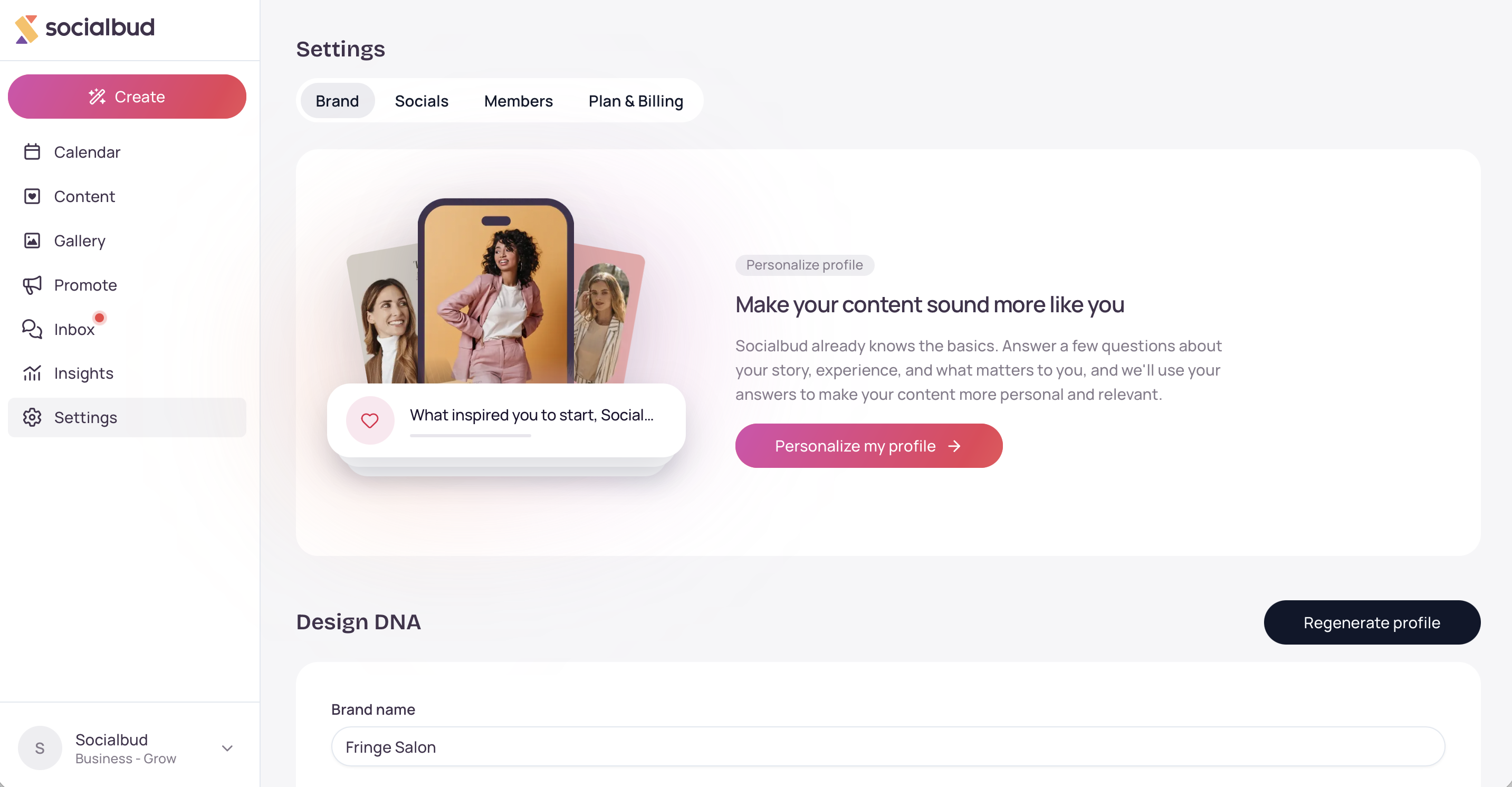
Brand name and Content language
Brand name is the name used for this brand in Socialbud.
Content language is the language Socialbud uses when it writes your posts and other generated content. This is separate from App language on My Profile, which only changes the language of the app itself.
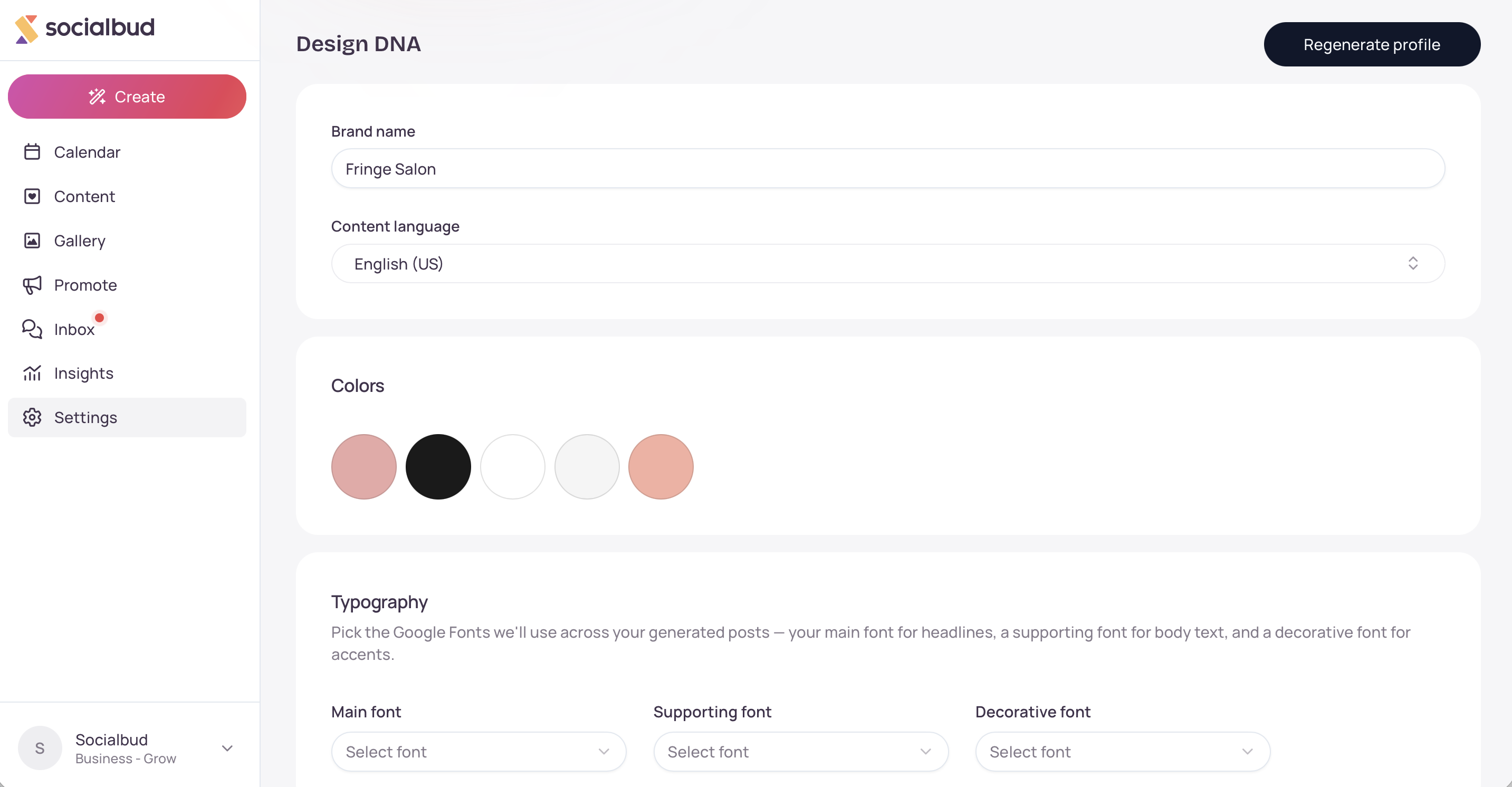
Colors
Click a color to change it, then Apply.
Click Add color to add another color.
Use Remove from palette to take a color off the palette.
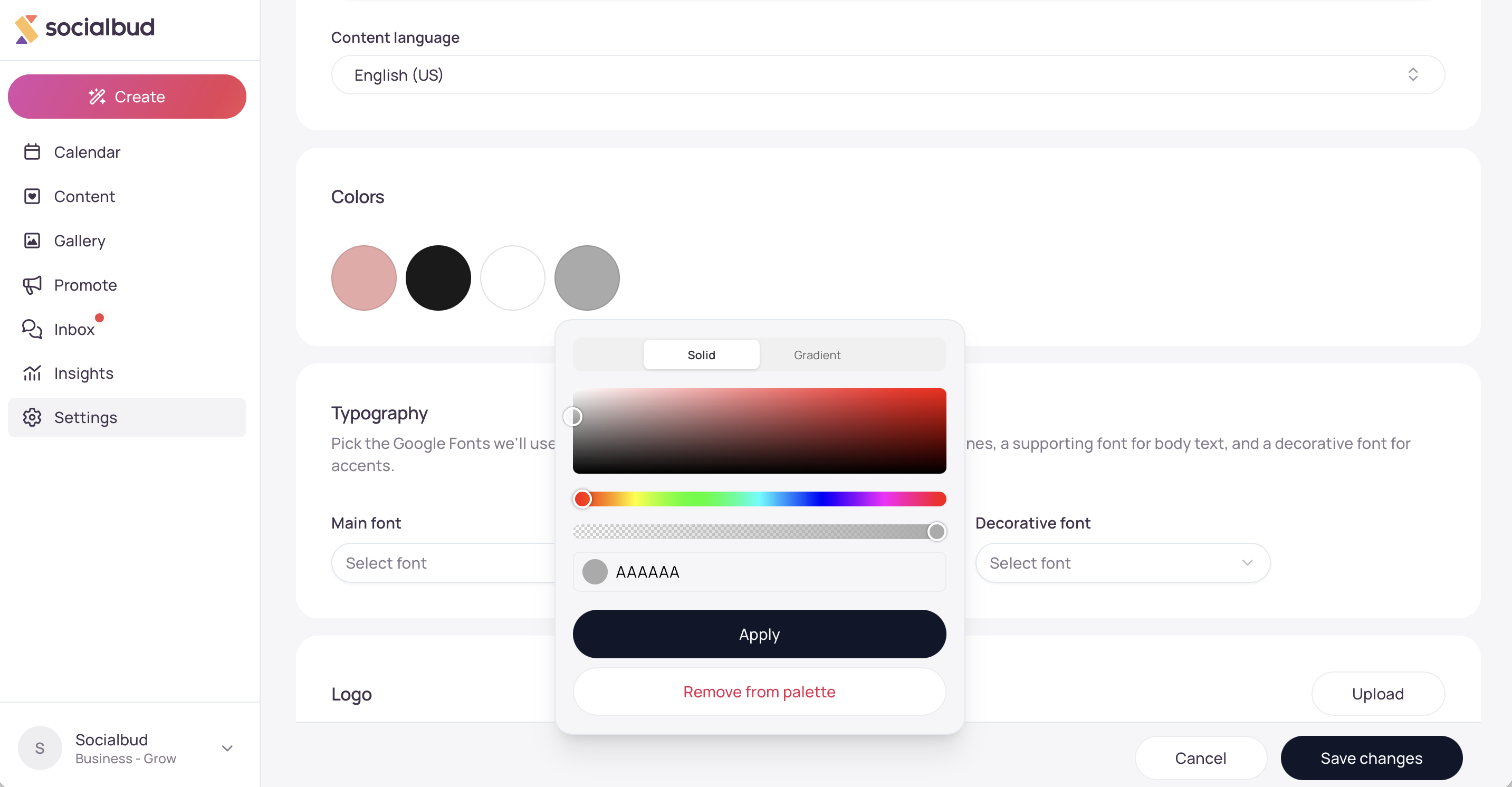
Typography
Set Main font (headlines), Supporting font (body text), and Decorative font (accents).
Search the font list and pick a Google Font for each role.
Logo
In Logo, click Upload.
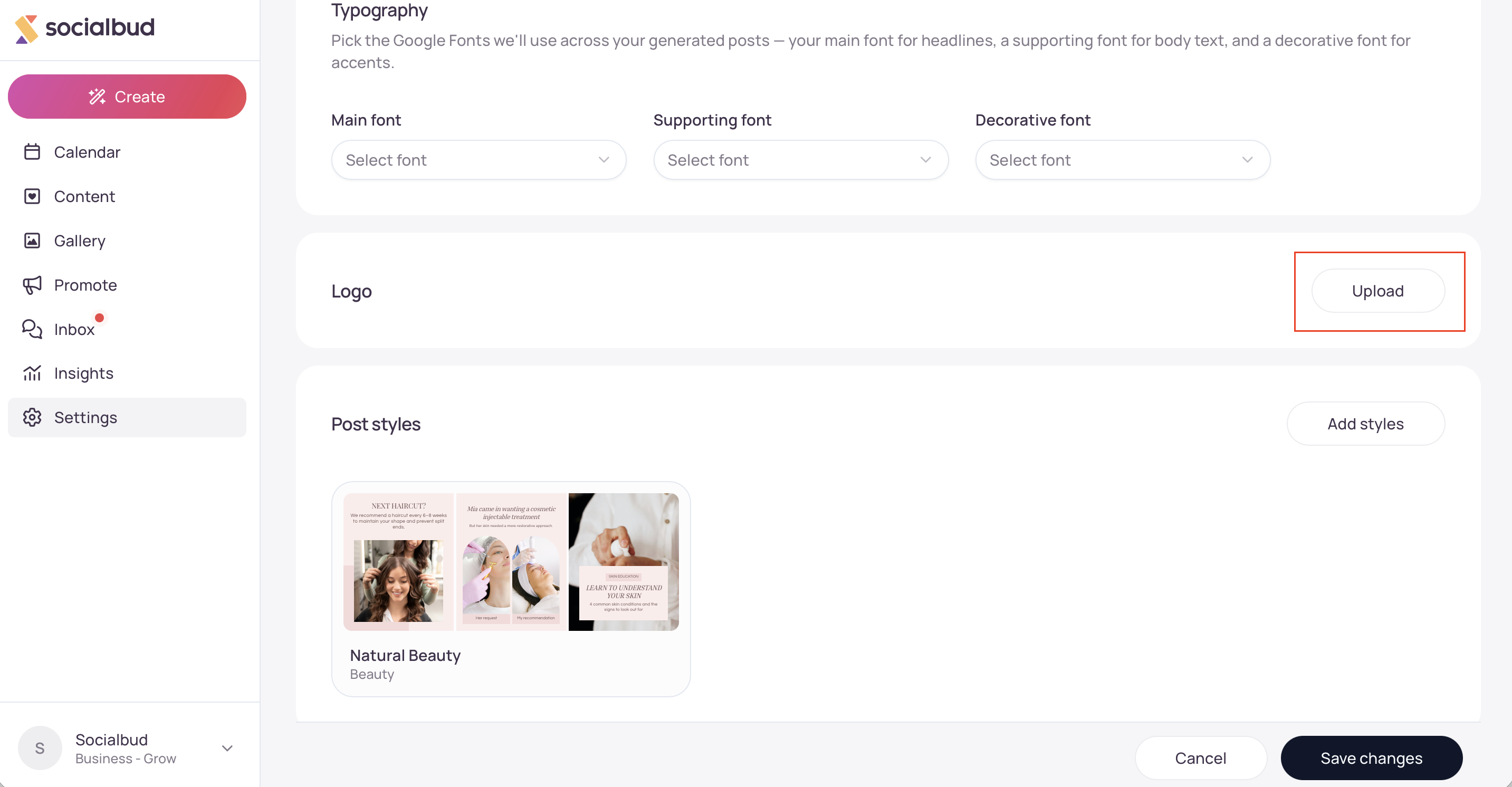
Choose an image. You can select more than one.
Accepted types: PNG, JPEG, WebP, GIF, SVG, HEIC, and HEIF. Each file must be 10 MB or smaller.
If Optimize appears on a logo, click it to create additional logo versions Socialbud can place on posts. Wait until Optimizing… finishes before you remove that logo.
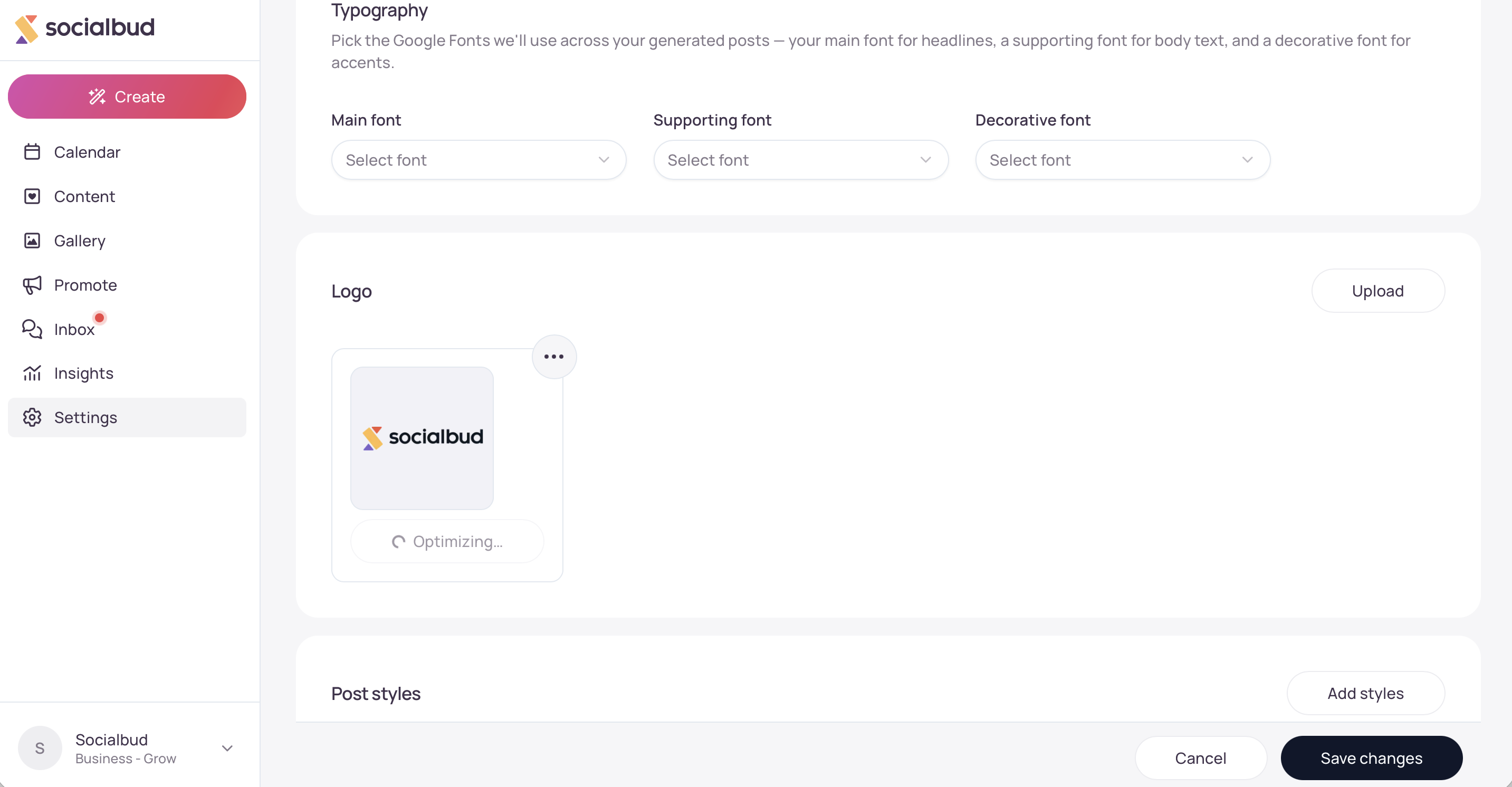
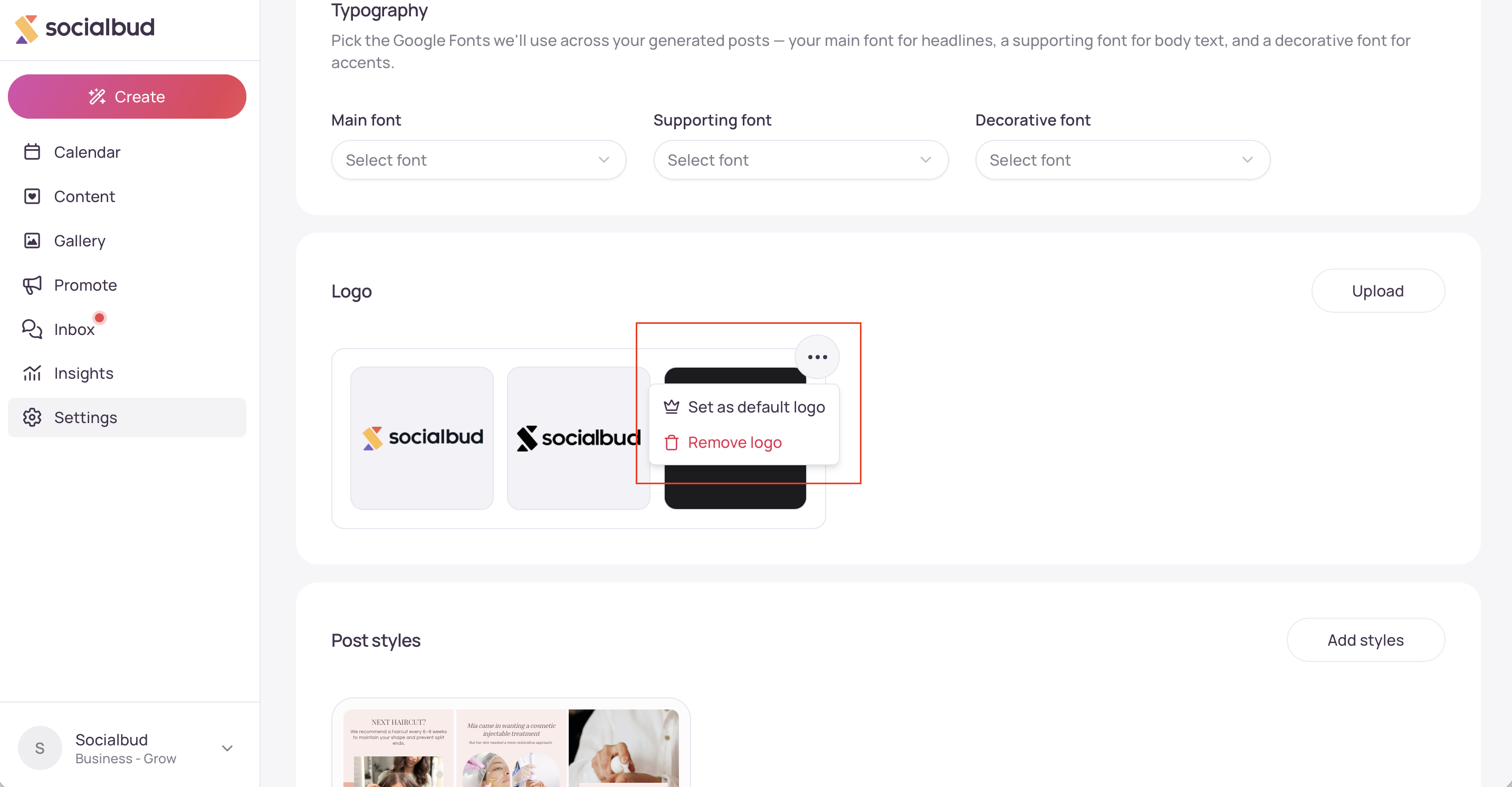
Open Logo options (the menu on a logo) to Set as default logo or Remove logo. The default logo is marked Default logo.
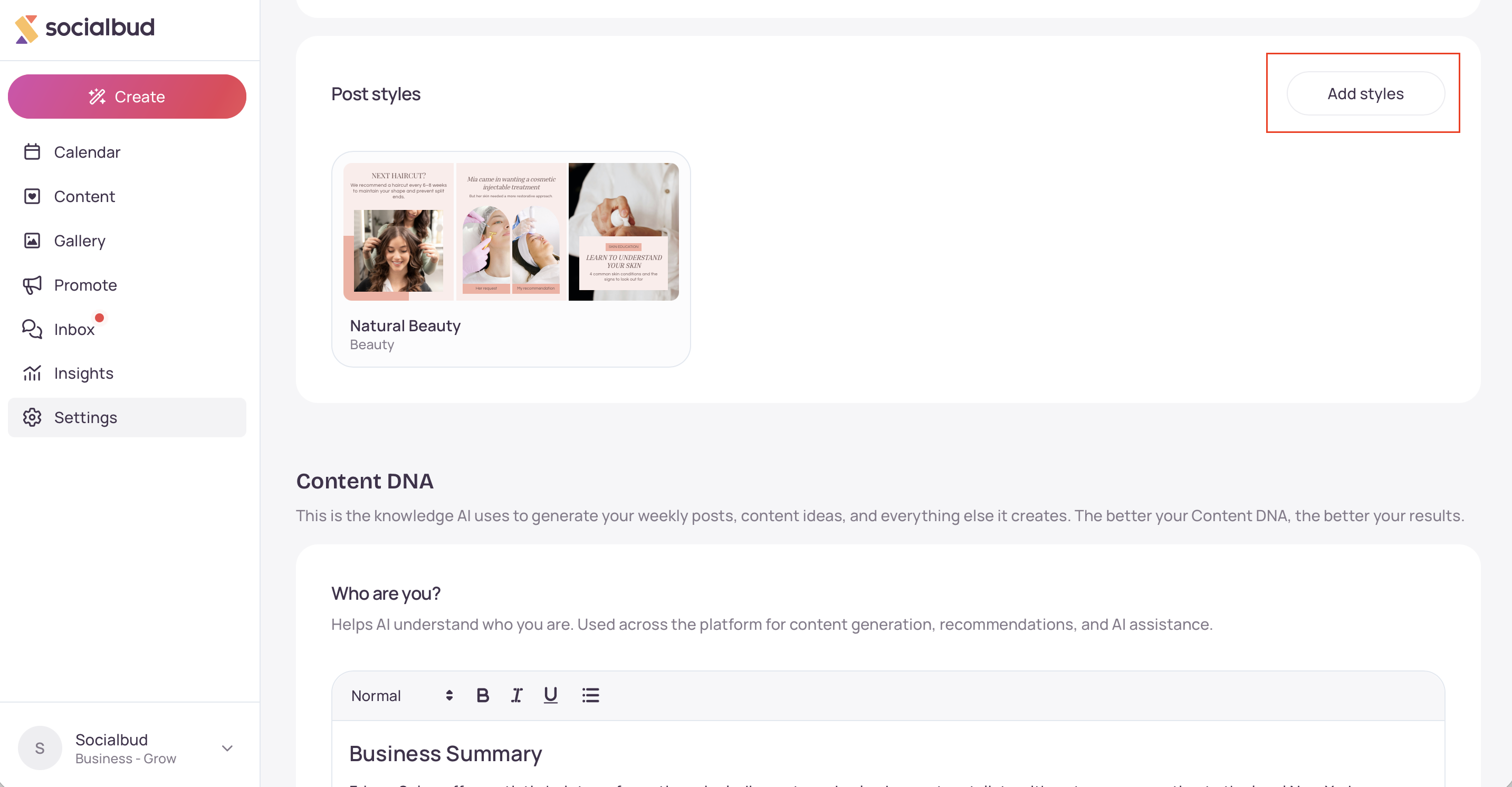
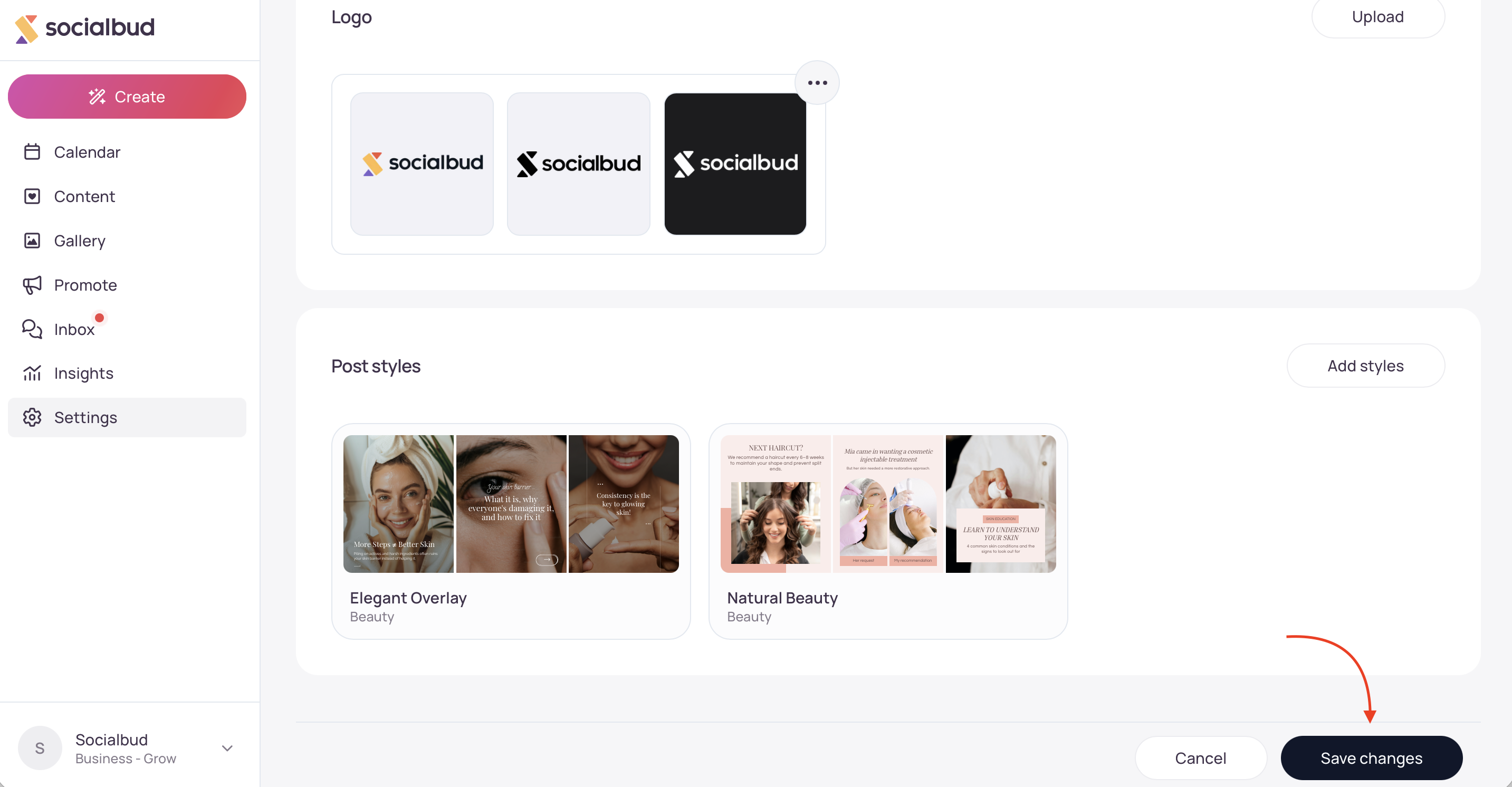
Post styles
Click Add styles.
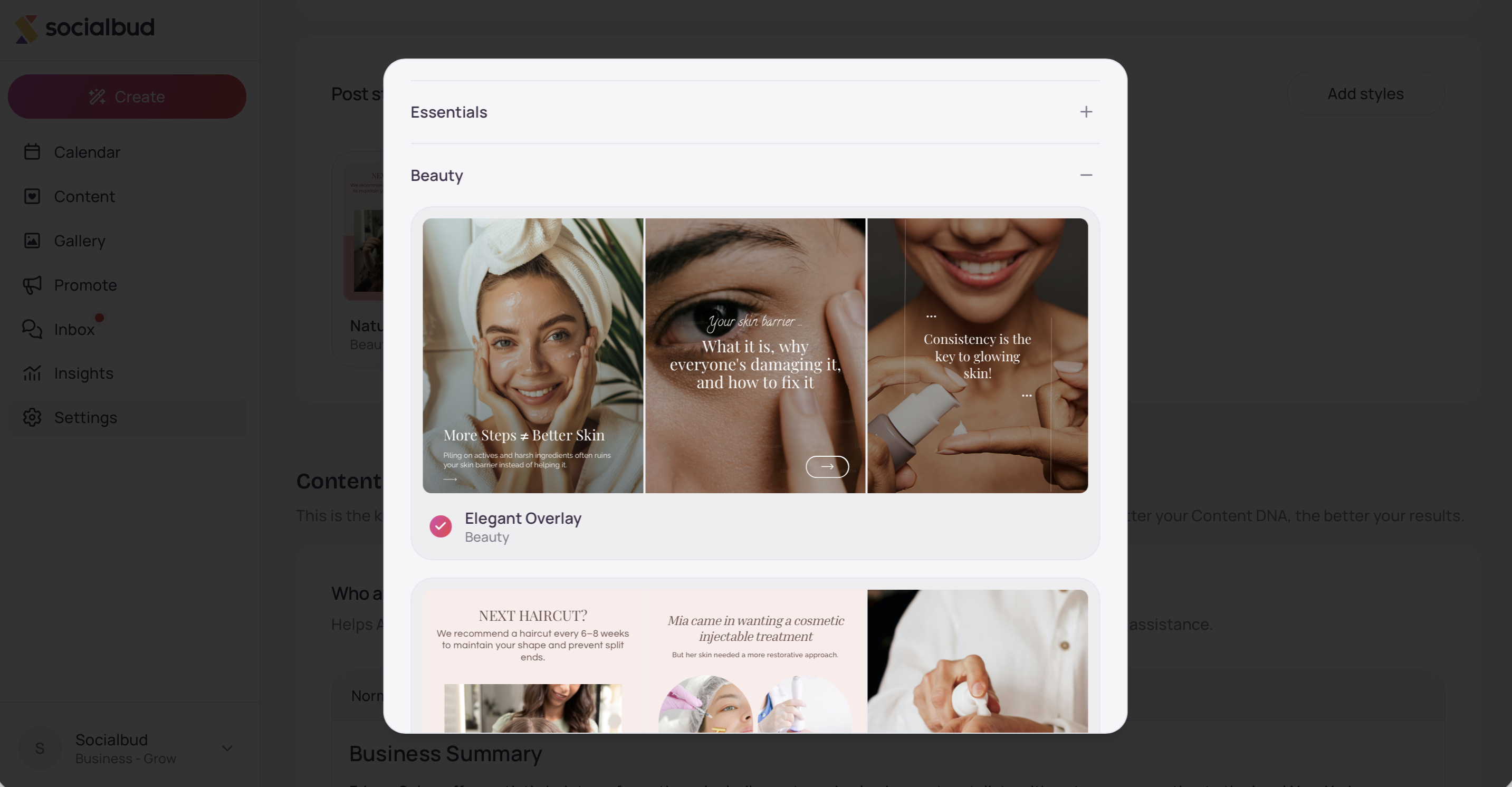
In Post styles, choose the styles you want, then scoll down and click Select.
To take a style off your brand, use Remove style on its card.
Click Save changes to keep the selection.
These fields are what Socialbud reads when it generates content. Click into a field to edit it.
Who are you? — who the brand is. This must be at least 50 characters before you can save.
What do you want to talk about? — the topics and plan for your posts.
How should your content sound? — voice and tone for posts, comments, messages, and other writing.
Must-follow rules — wording, formatting, or brand rules the writing should follow.
If you see Regenerate posting strategy next to What do you want to talk about?, that rewrites only that section. It is not shown on every account.
Regenerate profile rebuilds your business profile and related brand content from a source you provide. Typography is kept.
Click Regenerate profile
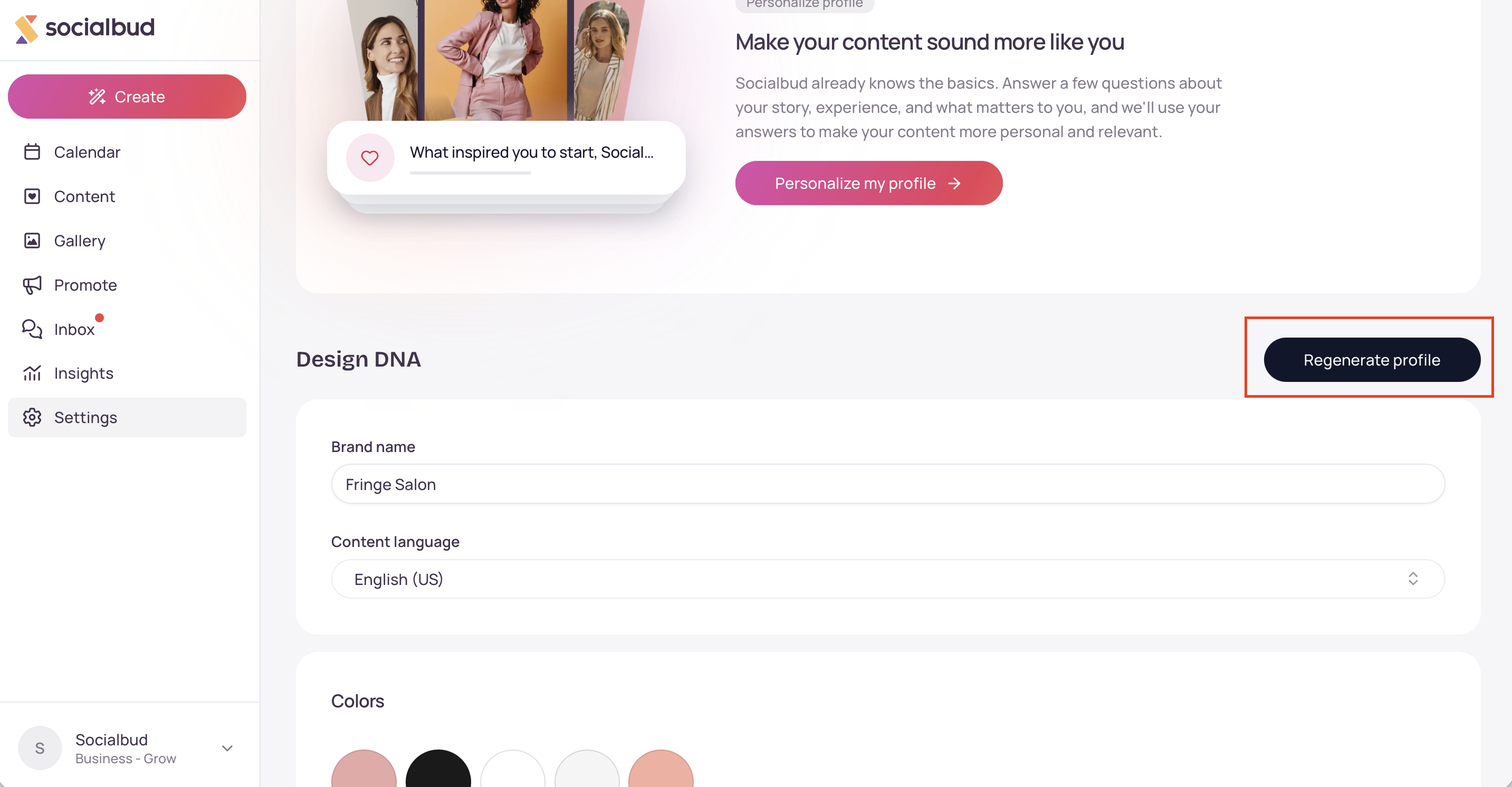
.
Enter a website or a social profile URL (or handle), www.yourwebsite.com or instagram.com/yourbrand. You need at least one of them.
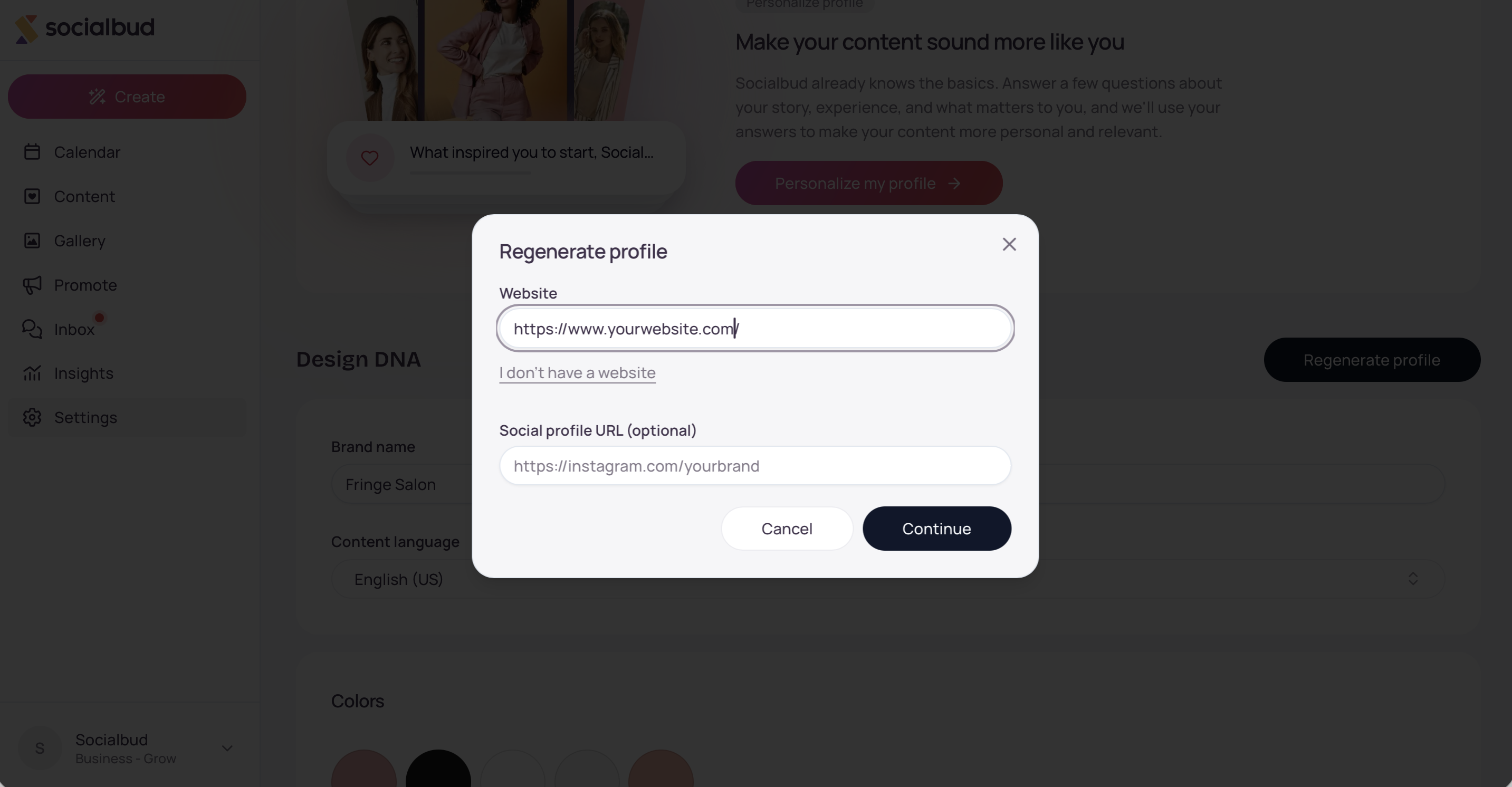
If you don’t have a website, switch to a written description and write at least 50 characters.
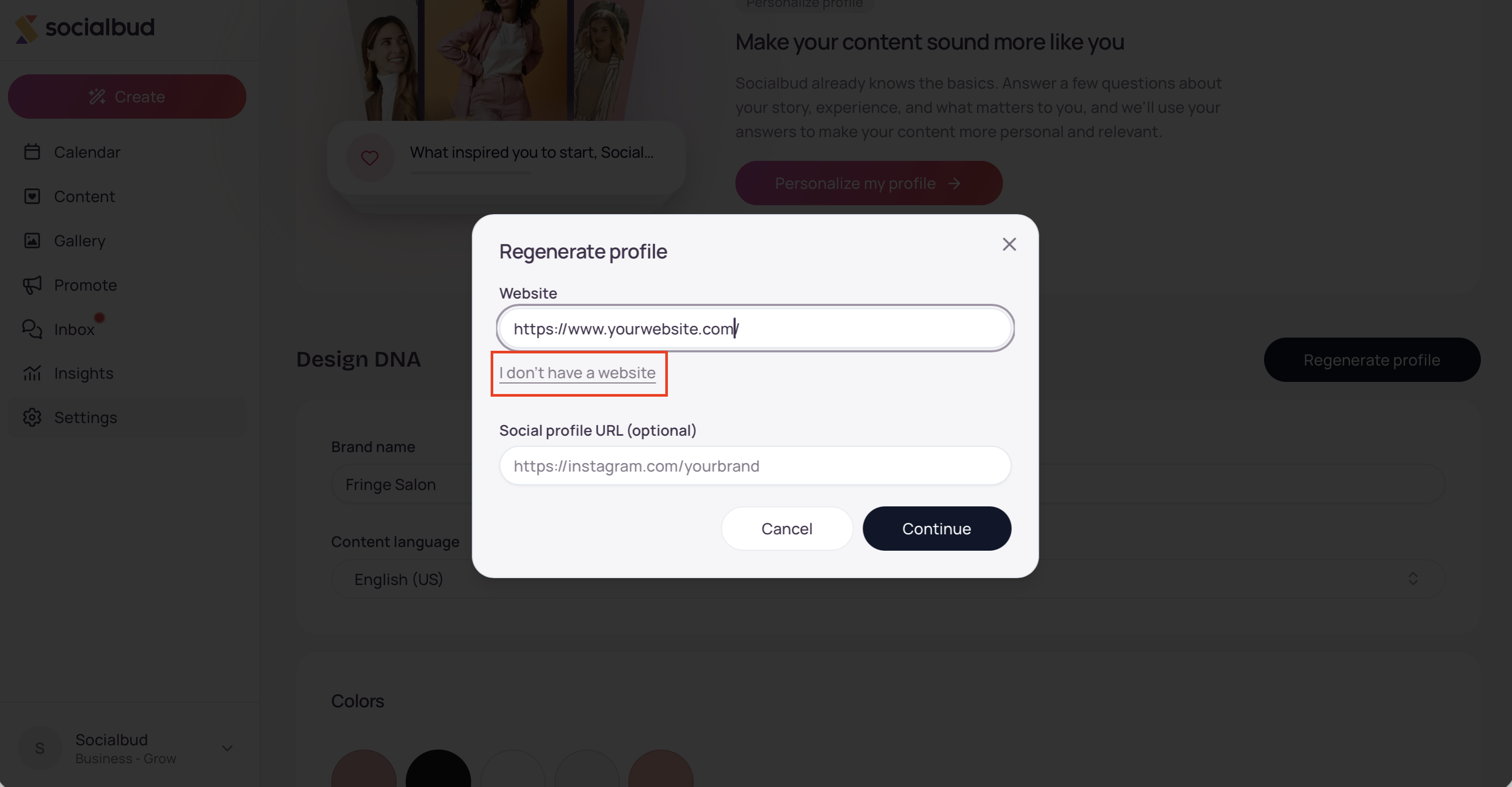
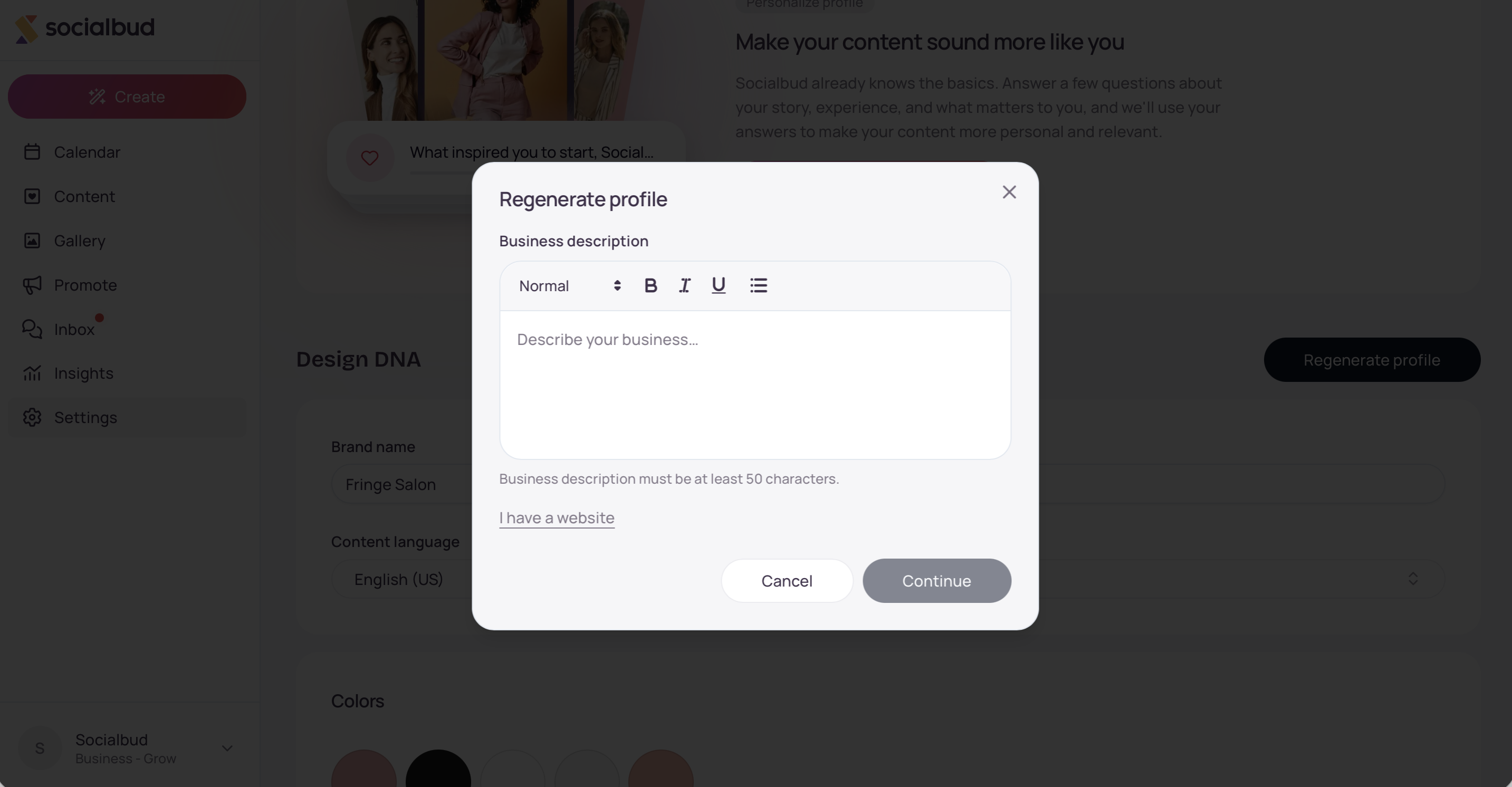
Continue. Socialbud asks you to confirm: this overwrites existing profile content. If you have unsaved edits, they are discarded if you continue.
Click Continue, or Cancel to stop.
At the top of Brand you may see Personalize profile (Make your content sound more like you).
Click Personalize my profile.
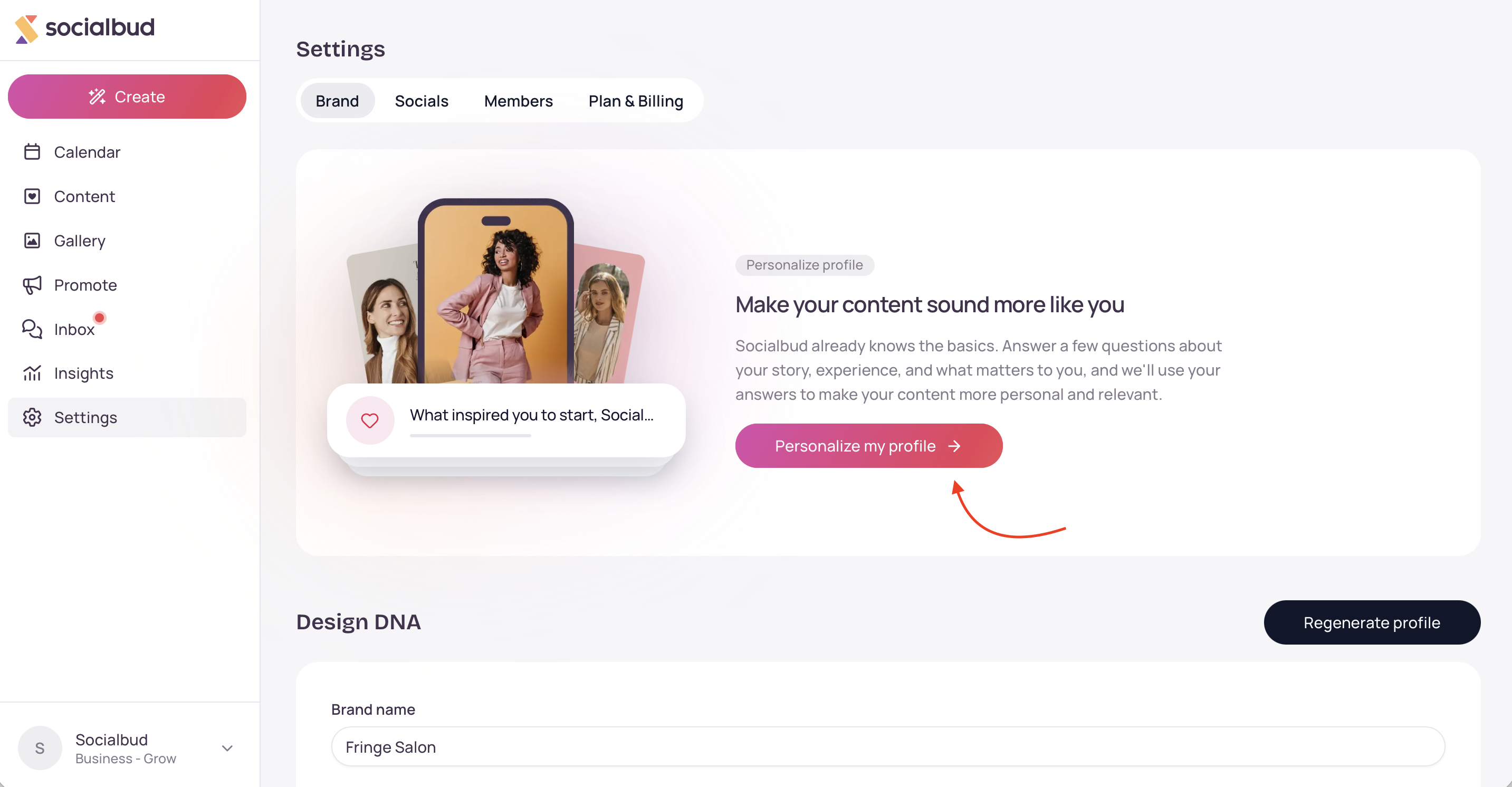
Click Start, then answer the questions. You can Skip a question.
Submit with Personalize my profile. Socialbud shows Personalizing everything around you while it rewrites your profile, voice, and posting strategy.
When it finishes, you return to Brand. The card then says Personalized and Your profile reflects your story. Click Update if you want to answer again.
After any edit on this page, click Save changes. Until you do, the edits are only on the screen. If Who are you? is shorter than 50 characters, saving stays unavailable and you’ll see Business profile must be at least 50 characters.
Be specific in Who are you?, What do you want to talk about?, and How should your content sound?. Socialbud uses that text when it generates posts and ideas.
Content language changes the language of generated content. App language (on My Profile) changes menus and buttons.
Regenerate profile keeps your typography. It replaces the generated profile content, so copy anything you want to keep before you confirm.
The Members tab, when you can see it, is for inviting people to the workspace. It does not change brand settings.
Save changes is missing or can’t be clicked. It only appears after you edit something. If Who are you? is under 50 characters, lengthen that text first.
I left the page and my edits are gone. Unsaved edits are not kept. If you see Save your changes?, choose Savebefore you leave. Discard drops the edits.
Upload failed. Use PNG, JPEG, WebP, GIF, SVG, HEIC, or HEIF, and keep each file at or under 10 MB. An empty file is rejected.
I can’t remove a logo. Wait until upload or Optimizing… finishes, then try Remove logo again.
Regenerate profile says the URL is invalid. Use a full site such as www.socialbud.com, or a profile URL or handle such as instagram.com/yourbrand. If you have neither, write a description of at least 50 characters instead.
I don’t see Regenerate posting strategy. That action is not available on every account. You can still edit What do you want to talk about? yourself and click Save changes.
Will this change posts I already made? No. Brand updates are used for content created after you save. Existing posts stay as they are.
What is the difference between Content language and App language? Content language on Brand is the language of generated posts and other writing. App language on My Profile is the language of the Socialbud interface.

