Socialbud can create a fresh batch of post drafts for you on a recurring schedule. These auto-generated posts are based on your Brand Kit and Business Profile, placed on your Calendar with suggested dates, and wait for your approval before anything is published.
After you finish onboarding (and while you have an active subscription that includes auto post generations), Socialbud prepares a batch of drafts for the weeks ahead.
Each draft gets a suggested date and time on your Calendar and shows as Needs approval until you schedule it.
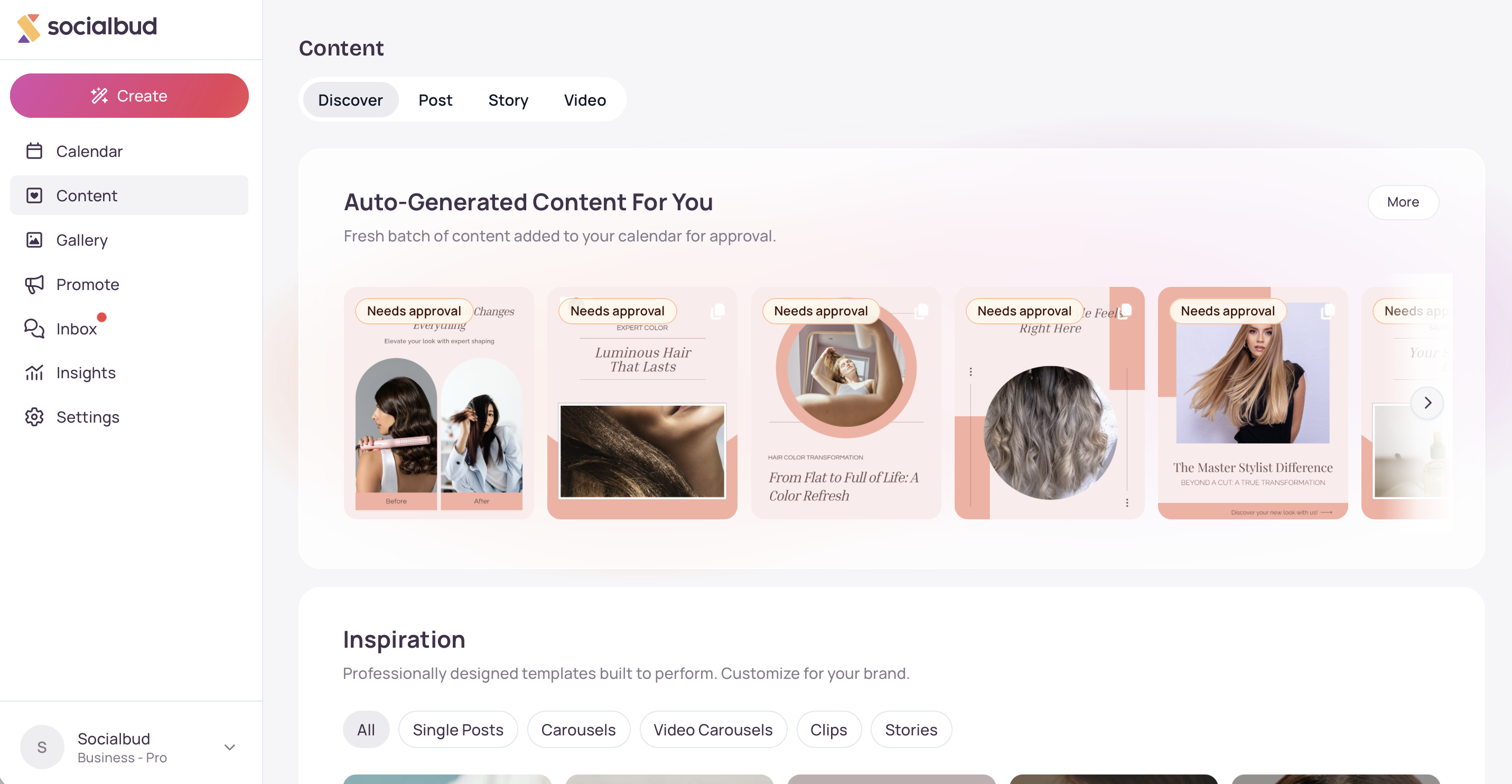
Review drafts in Content → Discover under Auto-Generated Content For You, or open them from the Calendar.
Edit the caption or visual, pick platforms, then Schedule when you’re ready. Until you schedule, the post will not publish.
About once a month, Socialbud generates the next batch. How many posts you get per batch depends on your plan.
Find your auto-generated posts
Open Content in the left navigation (you’ll land on Discover).
You’ll find Auto-Generated Content For You right at the top of the page.
Click a post to open the drawer, or click More to browse the full list.
Or open Calendar and look for posts with Needs approval.
Unreviewed auto-generated drafts stay in this Discover section (and on the Calendar). They do not appear under Post → My posts until you schedule them.
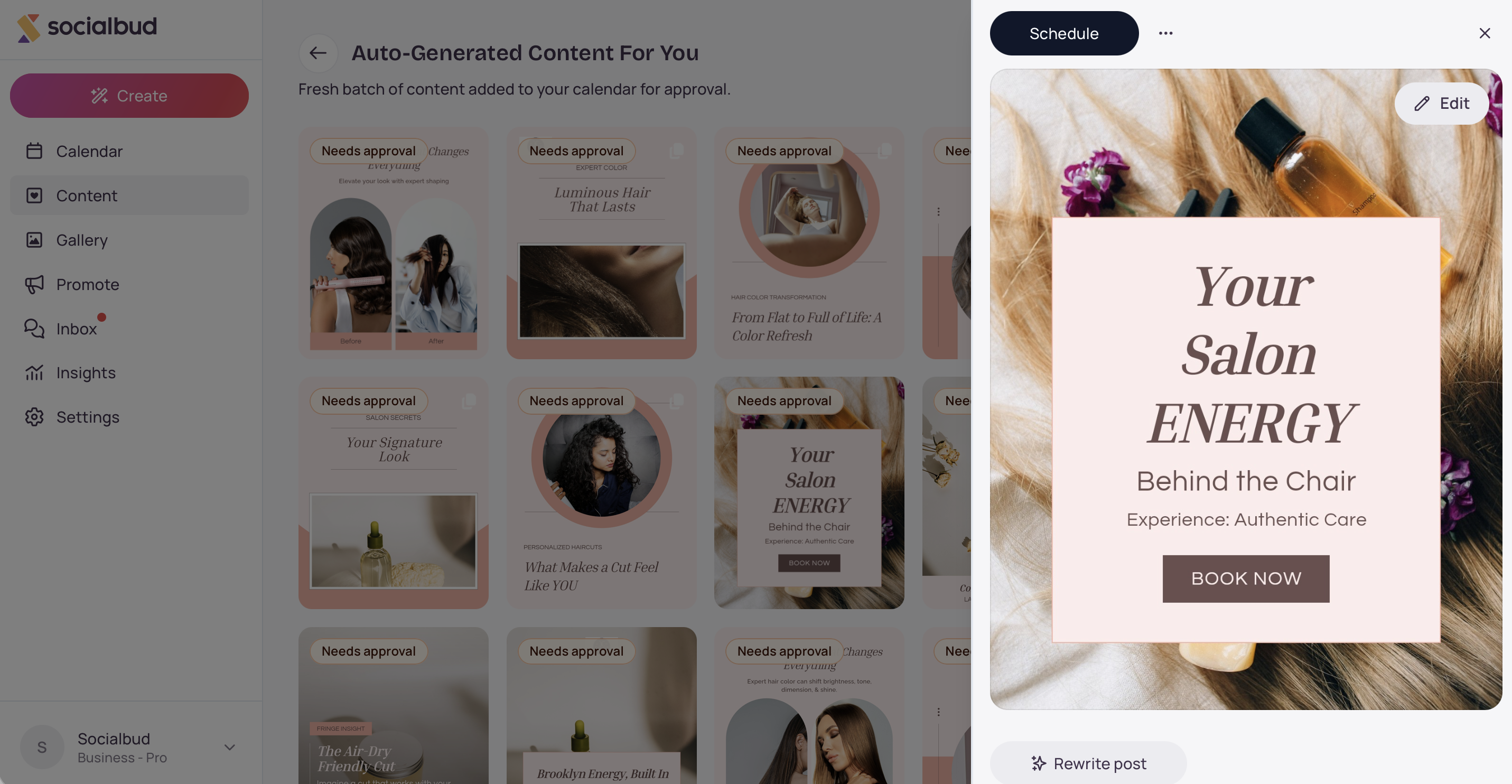
Open a post from Discover or the Calendar.
Check the visual and caption. Use Rewrite post or Edit if you want changes.
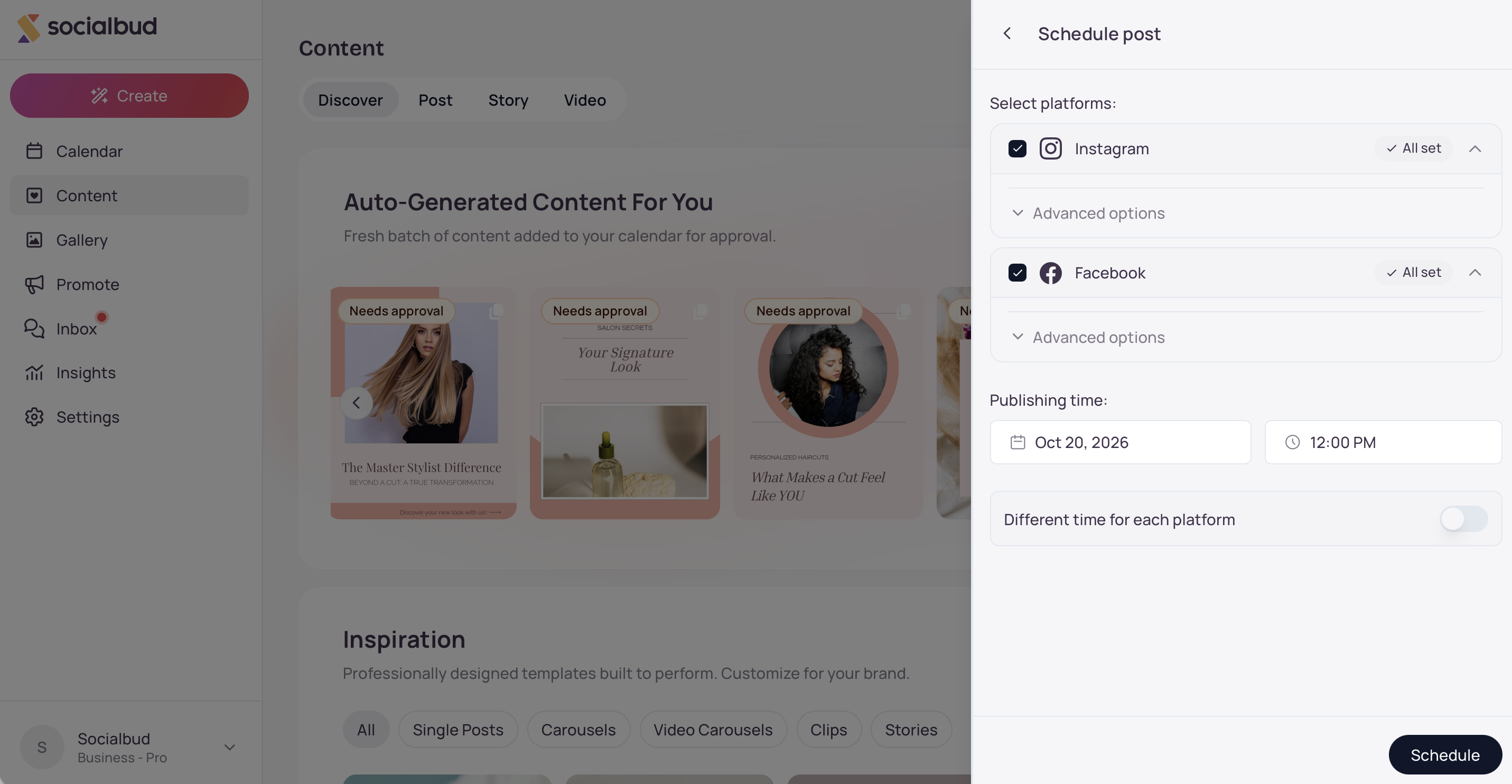
Choose the platforms and confirm the date and time.
Click Schedule.
After scheduling, the post leaves the auto-generated carousel and shows up in My posts and on the Calendar as Scheduled.

On Discover you may see Your Auto-Generated Posts Are Almost Ready while a batch is in progress.
On the Calendar, pulsing placeholders mark dates that are still being filled in.
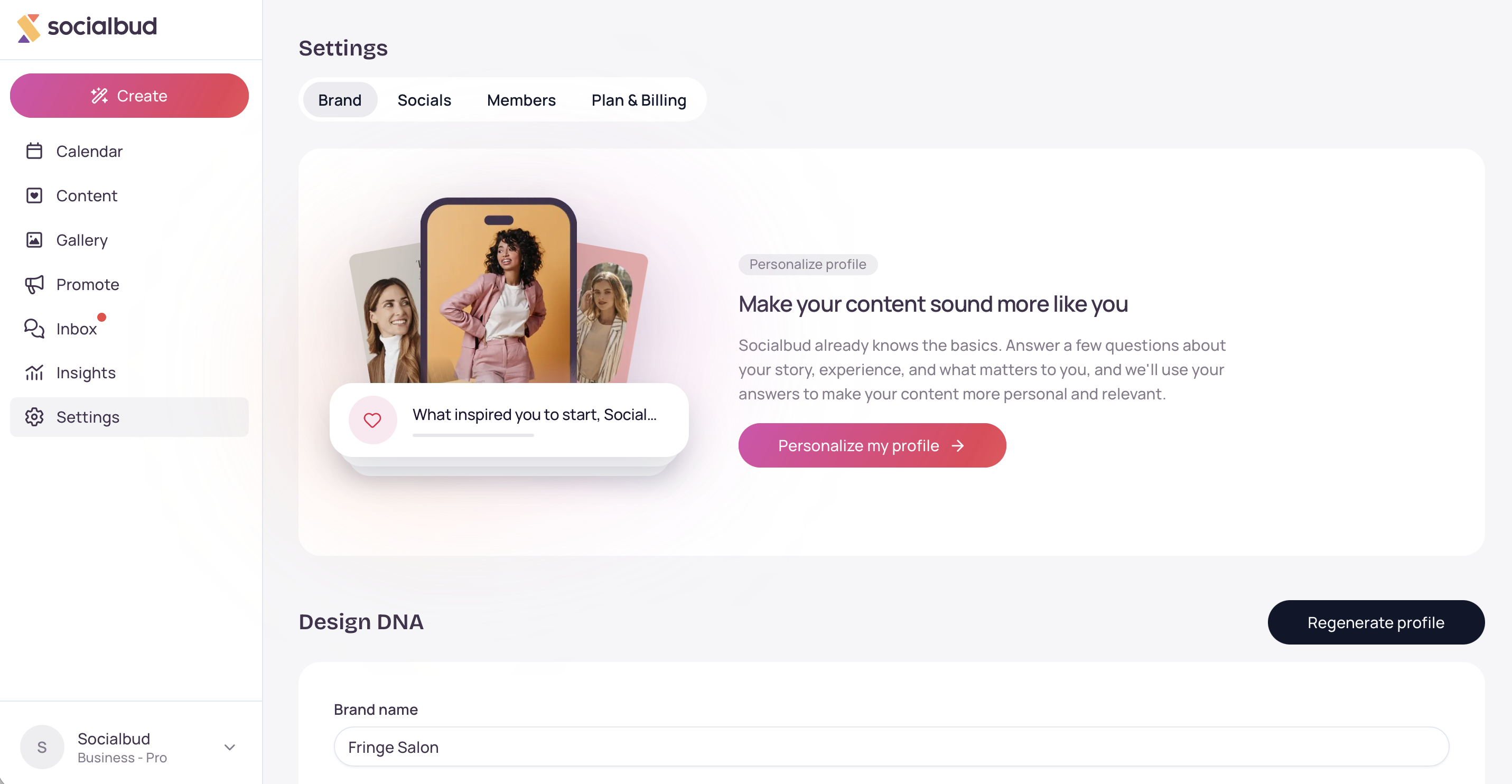
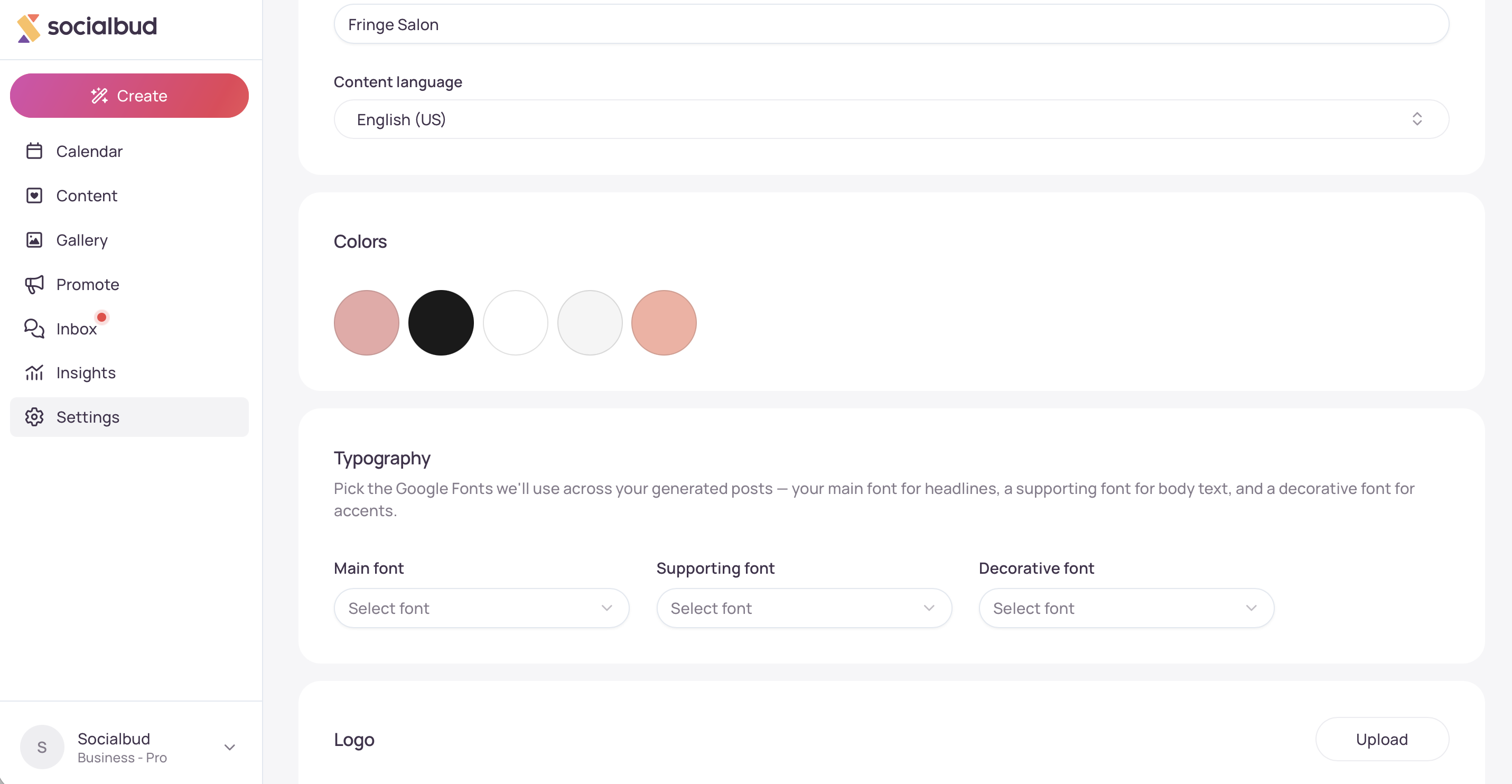
Future auto-generated posts use what you’ve set in Settings → Brand Kit (and during onboarding), including:
Brand colors — accents, backgrounds, and text styling on visuals
Typography — fonts used on captions and text overlays
Logo — your default logo when a template includes one
Post styles — the overall look and mood of generated layouts
Business Profile (and related brand content) — what your business does, voice, and posting strategy, which guide the topics and wording
Update Brand Kit anytime. Changes apply to new batches, not to drafts that were already created.
The subtitle under Auto-Generated Content For You reminds you that a fresh batch is waiting on your Calendar for approval.
Auto-generated posts prefer images from your Gallery when available.
You can download or delete a draft you don’t want.
An active subscription with auto post generations is required. Without that, new batches won’t run.
For Calendar views, editing, rewrite, and reconnect details, see the Calendar and Post editing article.
Confirm you’re on Content → Discover (not only the Post tab).
Check that your plan includes auto post generations under Settings → Account & Billing (or your subscription screen).
If you just signed up, wait for the first batch — Discover may show Your Auto-Generated Posts Are Almost Ready while it runs.
If the section is empty, Socialbud will generate fresh batches for you regularly once you’re enrolled.
That’s expected for unreviewed auto-generated drafts. Schedule them first; then they show under My posts.
Open it on the Calendar and check the status and any error message.
Make sure platforms are connected in Settings → Platforms & Schedule.
Remember: auto-generated drafts only publish after you Schedule them — a suggested date alone does not publish the post.
Brand Kit updates apply to future batches. Existing drafts keep the look they were generated with — edit those posts individually, or wait for the next monthly batch.
Pulsing cards mean Socialbud is still creating posts for those slots. Stay on the Calendar or Discover; finished posts replace the placeholders as they land.
How many auto-generated posts do I get?
It depends on your plan’s auto post generations allowance. Socialbud creates that many drafts in a batch, spreads them across upcoming weekdays, and prepares the next batch about a month later.
Do auto-generated posts publish by themselves?
No. They appear as Needs approval with a suggested date. You review, connect platforms, and Schedule before anything goes live.
What’s the difference between Discover and My posts for these drafts?
Unreviewed auto-generated drafts live under Auto-Generated Content For You on Discover (and on the Calendar). After you schedule one, it moves into My posts like any other scheduled post.
Will changing my Brand Kit change posts I already have?
No. Only future auto-generated batches pick up Brand Kit and Business Profile updates.

