The Calendar is where you review, schedule, reschedule, and edit your Socialbud posts. You can look at your plan by month, week, or day, open any post for details, rewrite the caption with AI, edit the visual, and check how published posts performed.
Open Calendar from the left navigation.
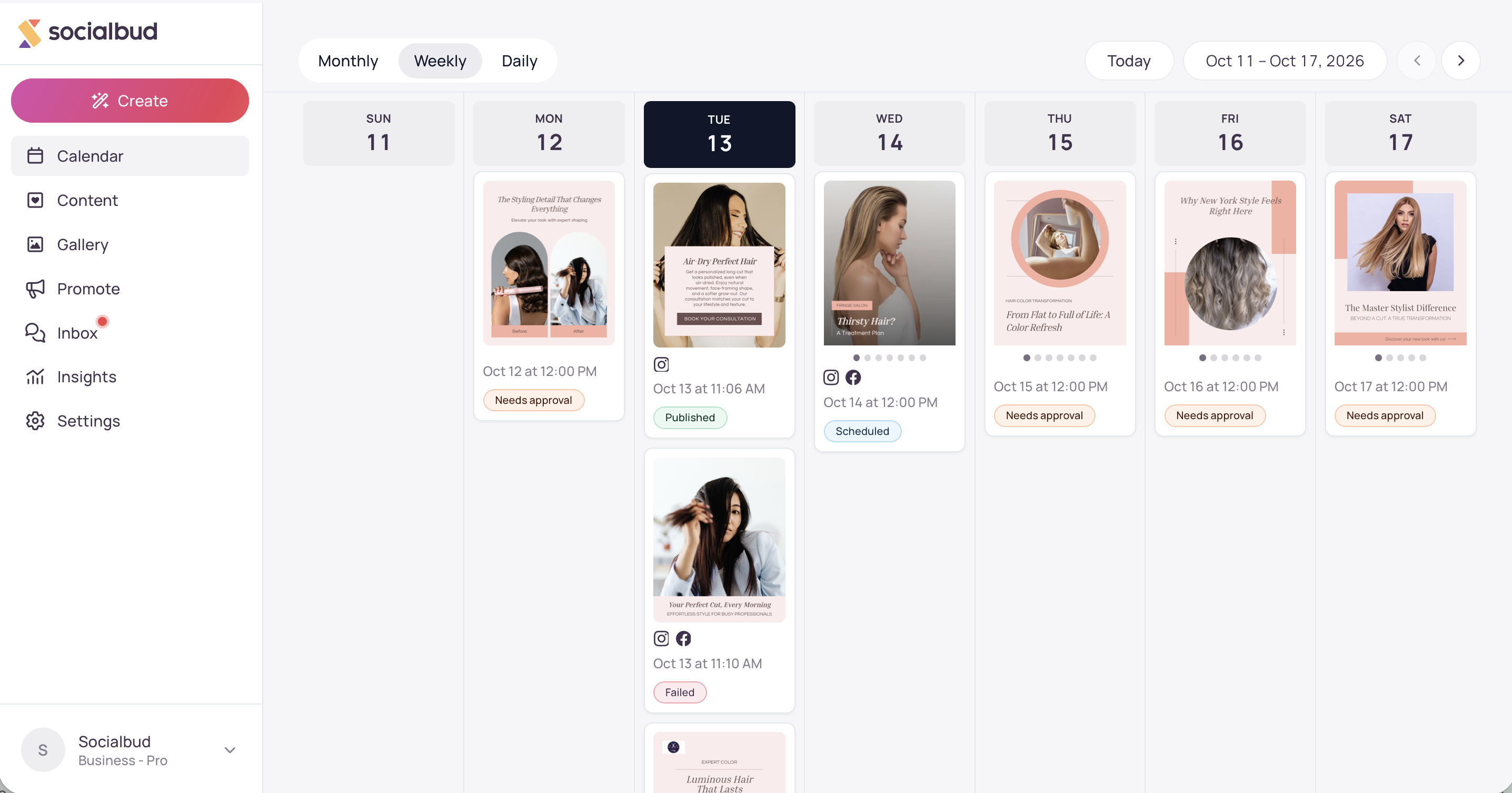
Use the toolbar to switch between Monthly, Weekly, and Daily views. The default view is Weekly.
Browse posts for the visible dates — including ones you created, auto-generated posts waiting for approval, scheduled posts, posts that are publishing, published posts, and failed posts.
Open a post to manage it in the post drawer (a side panel on desktop; full screen on mobile).
5. From the drawer you can schedule or reschedule, rewrite the caption, edit the visual, download, delete, and — for published posts — view performance.
Navigate the Calendar
Click Calendar in the left navigation.
Click Today to jump to the current date.
Use the date picker to choose a specific date.
In Weekly view, use the previous/next arrows to move by week.
Switch views with the Monthly, Weekly, and Daily tabs at the top.
Monthly — A quick overview. Each day shows one small post preview. If several posts share a day, only one thumbnail is shown. Clicking a day with posts switches you to Weekly for that day so you can open the right post.
Weekly — More detail per post: visual preview, platform icons, scheduled time, and status. Click a post to open the drawer.
Daily — Posts in a list with visual preview, a short caption preview, platform icons, scheduled time, and status. Click a post to open the drawer.
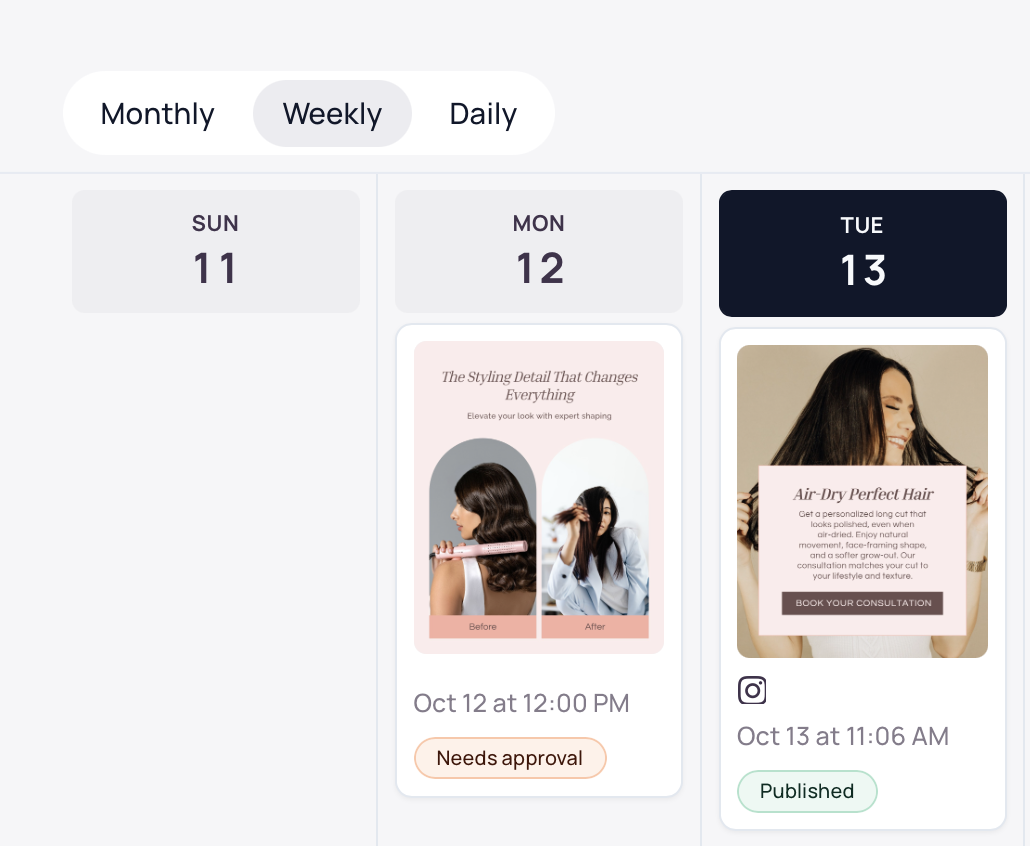
Weekly and Daily: click the post.
Monthly: click the day to jump to Weekly, then click the post.
The drawer opens from the right on desktop.
What you can do in the post drawer
Depending on the post’s status, you can:
Schedule or Reschedule the post
Delete the post (•••) button
Download the image(s) (•••) button
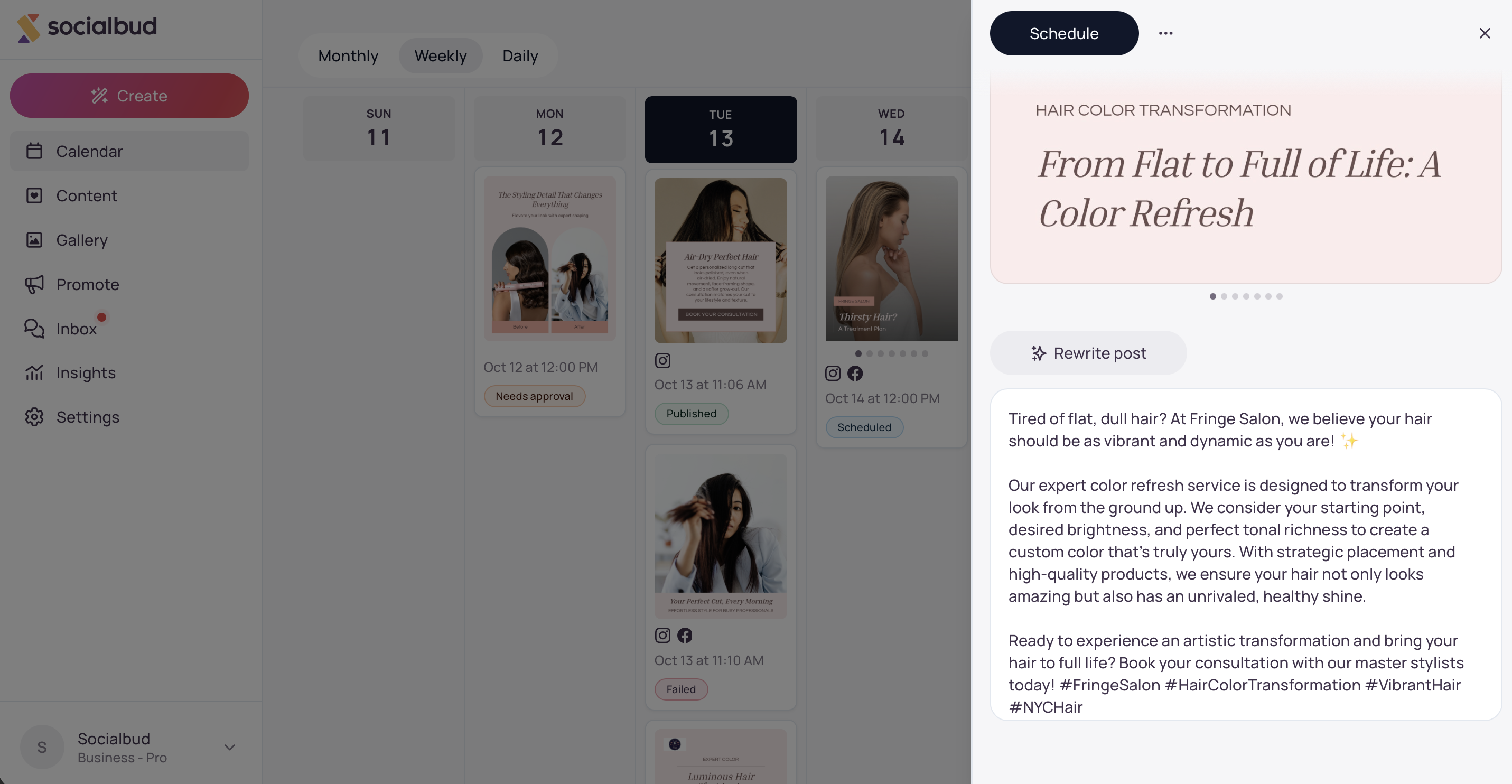
Rewrite post (AI caption rewrite)
Edit the visual (pencil / Edit / Edit post)
View performance metrics on published posts
You can also select a platform icon when the post is going to more than one platform, then edit or reschedule that platform alone.
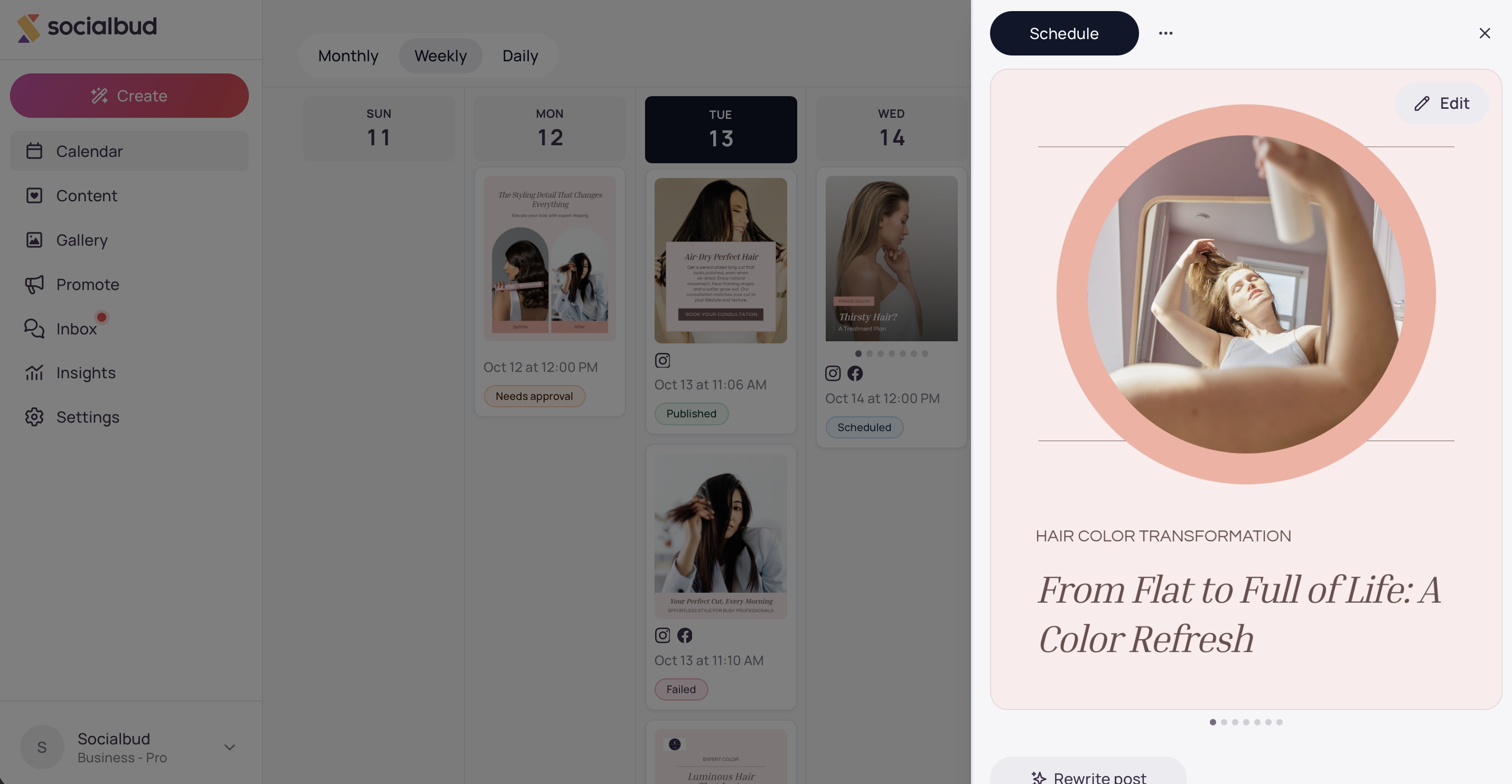
Open the post.
Click Rewrite post.
Describe the change you want (for example a different tone), or use Expand / Shorten.
Submit the rewrite. The new caption appears in the caption field.
Click Save to keep it, or Discard to undo.
Caption rewrite may be limited by your plan or monthly rewrite allowance. If you’ve used all rewrites, the panel explains why.

Open a post that is still editable (Scheduled, Failed, Draft, or Needs approval — not Published or Publishing…).
If the post targets several platforms, select the platform you want to edit.
Click the pencil / Edit control on the visual (or Edit post on that platform’s card).
Make your changes in the editor, then save.
If you opened edit for one platform, changes save for that platform. If captions already differ by platform and you save a shared caption edit, Socialbud warns you that saving will replace all platform captions with the one shown — choose Continue or Cancel.
From the drawer, use Schedule / Reschedule to pick date, time, and platforms.
For a multi-platform post you can Reschedule this platform or reschedule all platforms together.
If platforms are set to different times, the Calendar may show them as separate cards.
Connect or reconnect platforms
Connect accounts in Settings → Platforms & Schedule.
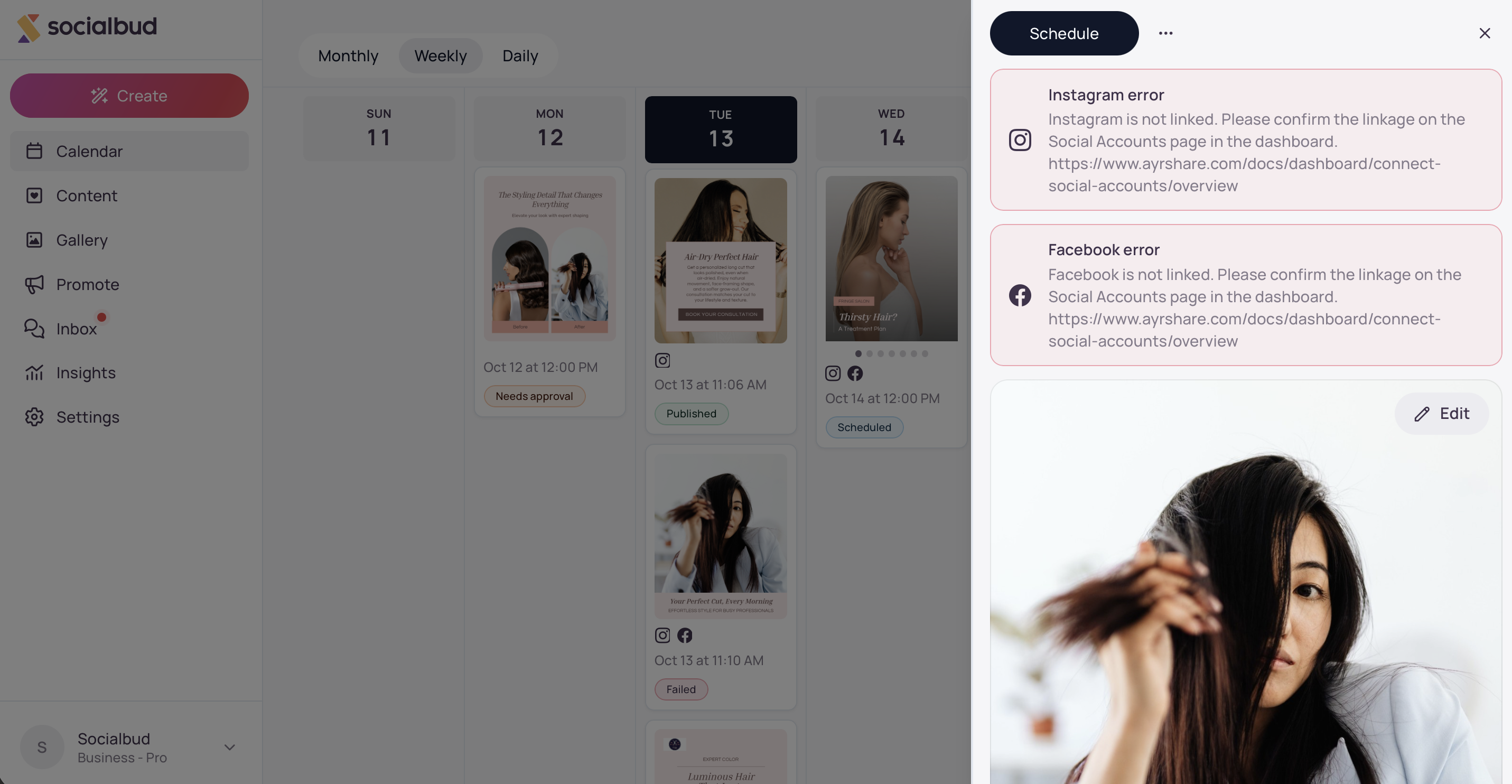
If a scheduled post targets a disconnected platform, the drawer shows an amber Reconnect warning. Click Reconnect to open platform settings.
Auto-generated posts and placeholders
Auto-generated drafts appear with a Needs approval status until you schedule or change them. You can edit, rewrite, schedule, download, or delete them.
You may also see a magic-wand placeholder for a future auto-generated post, with how many days until it appears.
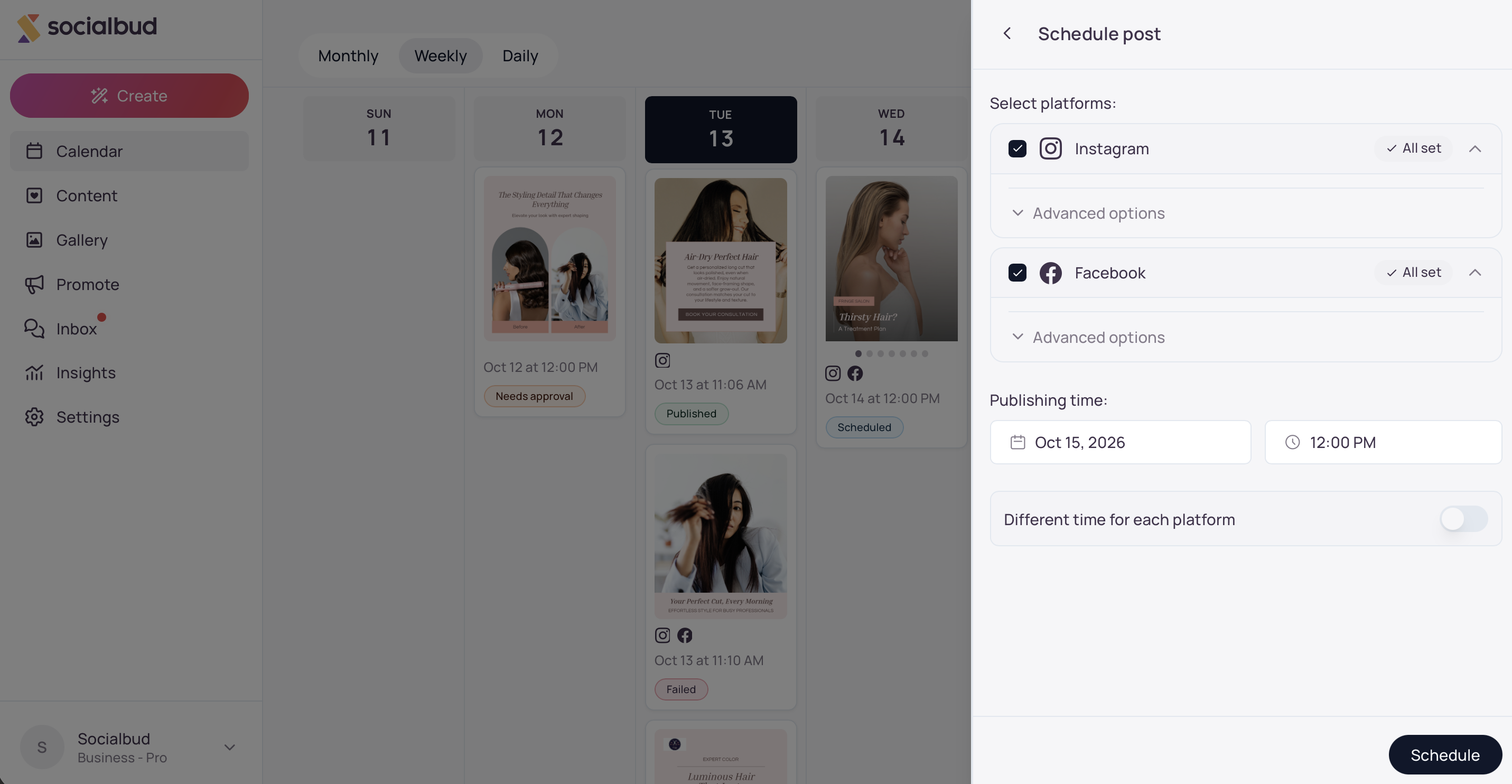
Prefer Weekly when reviewing captions, platforms, and status in one glance; use Monthly for a high-level plan.
After you schedule a post from elsewhere in the app, Socialbud usually takes you to the Calendar week where the post landed.
Performance (likes, comments, shares, impressions, reach, and sometimes click or engagement rate) appears inside the drawer for published posts. Available metrics depend on the platform.
Deleting a post permanently removes it and its schedule.
Statuses are easiest to see in Weekly and Daily views:
Needs approval — auto-generated draft waiting for you
Draft — saved but not scheduled to publish
Scheduled — planned for a future time
Publishing… — currently being sent to a platform
Published — successfully published
Partially published — published on some platforms but not others
Failed — could not be published; open the post for the error details
Check platform — Socialbud could not fully confirm the outcome; open the post and review the platform
Open the post and read the error message.
Fix the underlying issue (for example reconnect the account, shorten the caption, or reduce hashtags if Instagram rejected them).
Click Reschedule and try again.
If an account is locked or removed on the social network itself, resolve that with that platform’s support first.
Disconnected platforms
Look for the amber reconnect message in the drawer.
Click Reconnect, or go to Settings → Platforms & Schedule.
Learn more in the Connecting your social channels to Socialbud article.
Instagram hashtag warnings
If Instagram rejects a post because the caption has too many hashtags, reduce the hashtags and schedule again. Keep only the most important ones in the caption; you can add more later in a comment if you want.
I can’t edit a published post
Published posts (and posts that are Publishing…) can’t be edited. Download the visual if you need a copy, or create a new post.
Caption rewrite isn’t available
Why do I see two calendar cards for one post?
If you reschedule only one platform to a different time, Socialbud splits that post into separate calendar cards — one per schedule time — while keeping them linked as the same post in the drawer.
Can I edit only one platform’s visual or caption?
Yes. Open the post, select that platform, then use Edit / Edit post or rewrite and Save for the caption you’re working on. Platform-scoped visual edits save to that platform’s version.

