If you decide to part ways with Socialbud, we’re here to guide you through a smooth cancellation process. This article consolidates all steps into a clear flow and clarifies important points about the process.
Please note:

Follow these steps:
Access the Manage subscription window
Log in to your Socialbud account.
Navigate to your Settings page, and select Account and billing option.
Click Manage plan, and a pop up window will open.

View Your Subscription Details
In the Manage Subscription window, locate your current plan.
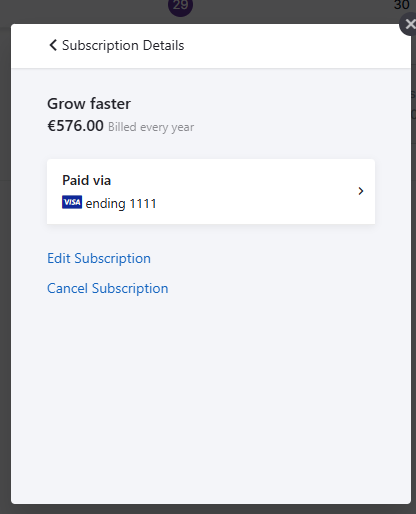
Click on it to open the subscription details.
Cancel Your Subscription
Select the Cancel Subscription option.
Confirm your cancellation in the prompt to finalize the process.
During an Active Subscription:
Your subscription will remain active until the end of your current billing cycle. After this date, no further payments will be charged, and access to Socialbud’s features will be discontinued.
If your subscription has been canceled or deactivated, you can easily reactivate it by following these steps:
Log In to your Socialbud account
Use your registered email and password to log in to your account.
Choose a subscription plan
After logging in, a pop-up window will appear, displaying the available subscription plans. Select the plan that best meets your needs.
Access the manage subscription modal
Click on the selected plan. A subscription modal will open, allowing you to finalize the reactivation process.
Before initiating the payment process, we recommend reviewing the following:
Review and update card details: Ensure that your payment information is accurate and up-to-date.
Check your payment method: Verify that your primary card has sufficient funds to cover the subscription.
Consider adding a backup card: Adding a secondary payment method can help prevent interruptions caused by issues such as expired cards or declined payments.
Complete the Payment
Submit your payment to reactivate your subscription. Once the payment is successful, your subscription will return to active status.
Enjoy Socialbud Features
After reactivation, you’ll regain access to all the features and benefits Socialbud offers.
